
Getting Started with MSP Studio+
- Log In
- Account Settings
- Content Settings
- Graphic Defaults
- Connect Social Media Accounts
- Schedule and Post Content
- Explore Content
Step 1 – Log In
- Visit the MSP Studio+ portal
- Sign in using your Microsoft or Google SSO.
Step 2 – Fill in Account Settings
- Navigate the left menu to settings > Account Settings
- Fill in Personal Details and press Save
- Fill in Company Details
- Company Name
- Branding
- Website URL
- Sales Email Address
- Sales Phone number
- Default Platforms
- Select up to 4 platforms to have pre selected when creating new content
- Timezone
- Select the down arrow to choose your default timezone.
- Logos
- Upload your Light and Dark mode logos
- Upload your Light and Dark mode logos
- Save
-
- Press save to lock in your details.
-
Step 3 - Content Settings
- Navigate the left menu to settings > Content Settings
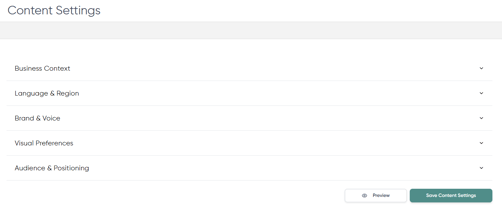
- These sections can be expanded and collapsed as desired.
- Fill in Business Context
- Using at least 50 Characters and up to 1000 Describe what your business does, who you server, and your area of expertise.
- Set your Language & Region
- Non-English languages will generate all copy the selected language. Hashtags however, always default in English for maximum reach.
- Brand & Voice
- Press the Down arrow to choose the tone that best represents your personal style.
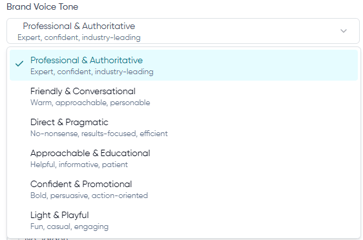
- Professional & Authoritative - Expert, confident, industry - leading
- Friendly & Conversational - Warm, approachable, personable
- Direct & Pragmatic - No-Nonsense, results-focused, efficient
- Approachable & Educational - Helpful, informative, patient
- Confident & Promotional - Bold, persuasive, action-oriented
- Light & Playful - Fun, Casual, engaging
- Press the Down arrow to choose the tone that best represents your personal style.
- Emoji Usage
- Press the down arrow to choose the amount of Emoji usage in posts.
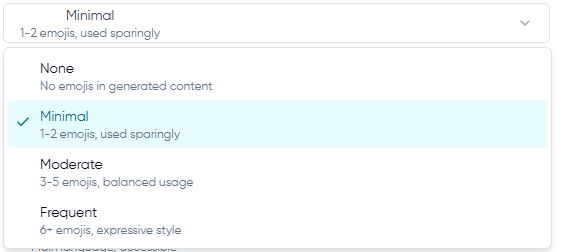
- None - No emojis in generated content
- Minimal - 1-2 emojis, used sparingly
- Moderate - 3-5 emojis, used sparingly
- Frequent - 6+ emojis, expressive style.
- None - No emojis in generated content
- Press the down arrow to choose the amount of Emoji usage in posts.
-
Writing Preferences
-
Select up to 3 writing style preferences for AI-generated content.
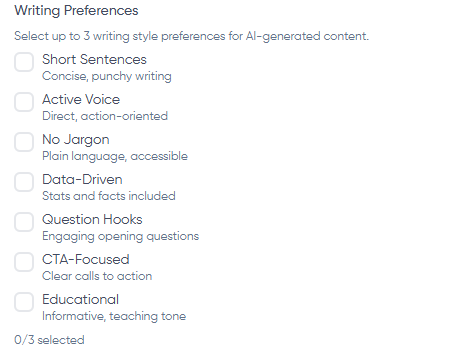
- Short Sentences - Concise, punchy writing
- Active Voice - Direct, action-oriented
- No Jargon - Plain language, accessible
- Data-Driven - Stats and facts included
- Question Hooks - Engaging opening questions
- CTA-Focused - Clear calls to action
- Educational - Informative, teaching tone
-
- Communication Style

- Select the dot and slide between Casual, Balanced, and Polished. Choose the perfect balance for your brand.
- Casual - Relaxed, informal tone
- Balanced - Balanced, professional yet approachable
- Polished - Refined, polished language
- Select the dot and slide between Casual, Balanced, and Polished. Choose the perfect balance for your brand.
- Visual Preferences
- Select your Primary, Secondary and Accent colors

- Click on the Primary, Secondary or Accent type to open a color selection menu.
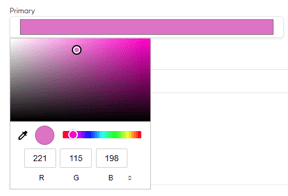
- Select your Primary, Secondary and Accent colors
- Imagery Style
- Select the drop-down to choose your default imagery style

- Illustration
- Cartoon
- Photorealistic
- Minimalist 2D
- Stylized 3D
- Select the drop-down to choose your default imagery style
- Theme Mode
- Select the radio button for your preferred theme mode
- Light
- Dark
- Auto
- Select the radio button for your preferred theme mode
Light, Dark, and Auto in this case are referring to the general color theme of generated graphics.
- Audience & Positioning
- Choose at least 1 and up to 4 primary audience selections.
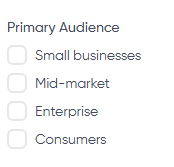
- Small Businesses
- Mid-market
- Enterprise
- Consumers
- Choose at least 1 and up to 4 primary audience selections.
- Decision Maker Level
- Choose at least 1 and up to 3 decision maker levels
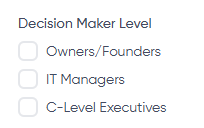
- Owners/Founders
- IT Managers
- C-Level Executives
- Choose at least 1 and up to 3 decision maker levels
- Preview
- Before you save, you can take a moment to preview a sample post that shows how your current selections come together in content.
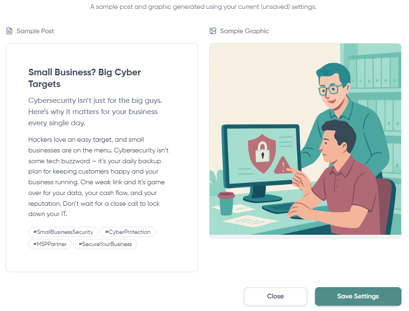
- Before you save, you can take a moment to preview a sample post that shows how your current selections come together in content.
Remember to Save your Content Settings

Step 5 - Graphic Defaults
- Navigate the left menu to settings > Graphic Defaults
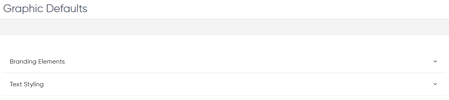
- These sections can be expanded and collapsed as desired.
- Branding Elements
- Select the default contact information you want displayed on graphics. You can select between zero and all 3.
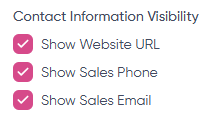
- Show Website URL
- Show Sales Phone
- Show Sales Email
- Select the default contact information you want displayed on graphics. You can select between zero and all 3.
- Expand the Text Styling section to fill in default customizations.
- Quick Template
- Select a pre-defined style across all text elements
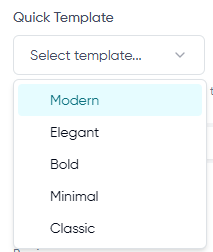
- Modern
- Elegant
- Bold
- Minimal
- Classic
- Select a pre-defined style across all text elements
- Heading Style
- Select the Heading type you wish to customize: Heading, Subtext or Contacts. Then fill in the choices below. For each heading type you can change the Font, Text, Spacing, Line height, Alignment, text background and shadow. As you make selections the Preview window will update with sample text.

- Font Family - click on the drop down to select your preferred font.
- Font Size - Use the slider provided to choose your preferred size.
- Font Weight
- Click the drop down to choose the best weight setting
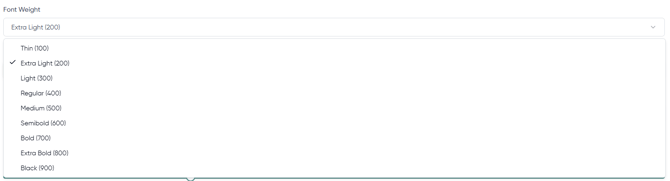
- Click the drop down to choose the best weight setting
- Front Style
- Choose Normal or Italic
- Choose Normal or Italic
- Text Color
- Enter the hex code of your choice or click on the square color to open a selection menu.
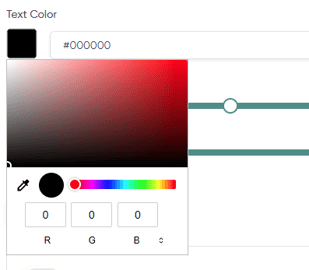
- Enter the hex code of your choice or click on the square color to open a selection menu.
- Letter Spacing
- Use the slider to choose between -5px and + 20px
- Line Height
- Use the slider to choose between 0.5 and 3.0
- Text Alignment
- Choose Left, Center, Right or Justify
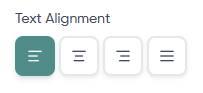
- Choose Left, Center, Right or Justify
- Text Background
- Toggle this on if you would like your text to have background colors, padding, or borders.
- Select your background color, or click on the color square to open a selection menu.
- Use the sliders provided to adjust:
- Opacity - between 0% -100%
- Padding - between 0px - 50px
- Border Radius - between 0px - 30px
- Text Shadow
- Toggle this on if you would like your text to have a shadow
- Select the shadow color, or click on the color square to open a selection menu.
- Use the sliders provided to adjust:
- Blur - between 0px - 50px
- Offset X - between -20px - 20px
- Offset Y - between -20px - 20px
- Save your changes.
- Select the Heading type you wish to customize: Heading, Subtext or Contacts. Then fill in the choices below. For each heading type you can change the Font, Text, Spacing, Line height, Alignment, text background and shadow. As you make selections the Preview window will update with sample text.
Reminder: these settings are adjustable on each level of text element - Heading, Subtext and Contacts.
Step 5 - Connect Social Accounts
We offer Instagram, Facebook, LinkedIn, and X
- Navigate on the left-hand menu to your dashboard.
- Choose the platform you want to connect and select the connect button.
- Follow the prompts to sign in to the network and authorize the connection.
- Repeat for each platform you wish to connect.
Social Media Accounts must be for business pages, not personal to connect. LinkedIn is the only exception.
Step 6 - Schedule and Post Content.
You have three options when posting content.
Generated Posts:
Social posts can now be generated in a few quick clicks. With all your Account, content and graphic defaults set, generated content is fast, accurate and on brand.
- Navigate on left menu to social post > Create post
- Give the post a topic, or roll the dice for a randomly generated topic.
- Once you have a topic, you can fill in the body with text or review the auto-generated text and make any edits as desired.
- Upload an image, or push the star icon to have one generated for you.
- Review the post preview as you make selections and click on preview to drag, resize and customize the content.
- Select when you want the content to post, and push the review and post button.
Note: Posts and settings created on a Trial account are not available once an account has moved to a regular subscription. Please save any posts or created assets you wish to keep for future use before moving to a subscribed account.
Asset Posts:
- Select the My Assets option from the left navigation menu
- Review the assets you have saved and click Create Post on the content you wish to use.
- Once you click create post it will load to the post preview page.
- Select the accounts you wish to post this content to.
- Review the Body Copy and edit the content if desired.
- Your fonts and default social settings can be edited, but will follow your default settings.
- Choose to publish live or schedule for later.

- Post.
Note: Not all fonts support italicizing
Custom Content:
Custom content is easy with MSPStudio+, Simply choose the Social Post option, fill in the details, upload your images, etc., if needed and schedule away. You can even have the tool read your content and generate a relevant image to accompany it.
Note: Not all fonts support italicizing
Explore Content:
This is a optional step for those who prefer to shop for content vs having it auto-generated.
-
Navigate on the left menu > Explore
- You can select specific topics and scroll to see content. When you find content that you wish to use, select add to my assets.
- When you select add to my assets you will be given the option to keep looking for more content, or post the content.
- Assets will also be available from the my assets section on the main menu.