
In This Article
Here's how this works.... in a nutshell.
- We connect to both your distributor and Microsoft
- You let the Gradient app read each of customer's Microsoft data.
- You tell us how to match up your accounts and products in your PSA with the information we pull
- There are two ways to consent your customers. Use either one, or mix them.
- Each customer needs a GDAP relationship. Your distributor almost always makes one for you.
We get Microsoft data from two places and why that's important
-
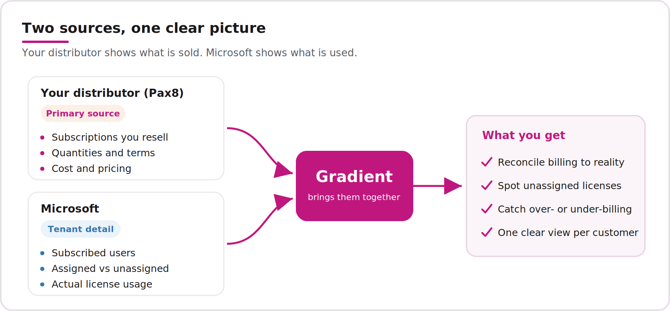
Your subscription data comes from two places. Each one tells you something the other cannot.
-
Your distributor is the main source. Because you resell through them, they know what you are billed for.
-
That includes the subscriptions you sell
-
How many of each
-
The terms, and the cost
-
-
Microsoft fills in the detail inside each customer tenant. It shows:
-
Who the subscribed users are
-
Which licenses are assigned, and which ones sit unused.
-
-
On its own, each view has a gap. The distributor shows what is sold. Microsoft shows what is used. We bring both together so you can see the full picture. You can spot licenses you pay for but no one uses. You can catch bills that run too high or too low. And you get one clear view for each customer.
Easiest path to setup
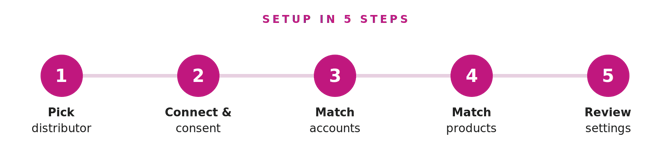
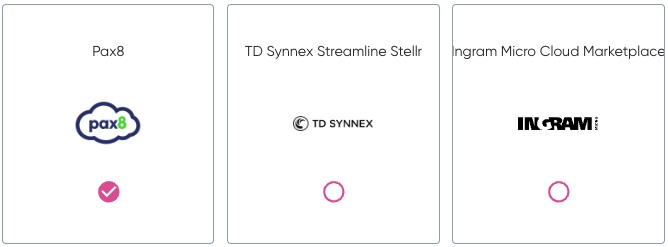
Step 1: Pick your distributor
Step 2: Connect to Microsoft and Distributor
This is the first connection, to your own tenant.
- Click Connect to your MSP's Microsoft tenant
- Then authenticate to your Distributor.
Using Pax8? The Pax8 user you sign in with must have admin access. Without it, Pax8 doesn't return the data Gradient needs. A Pax8 admin can check or change roles in the Pax8 portal under Settings > Users.
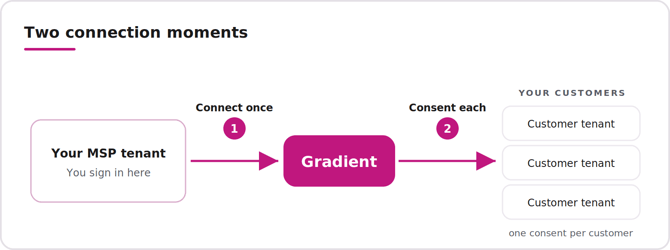
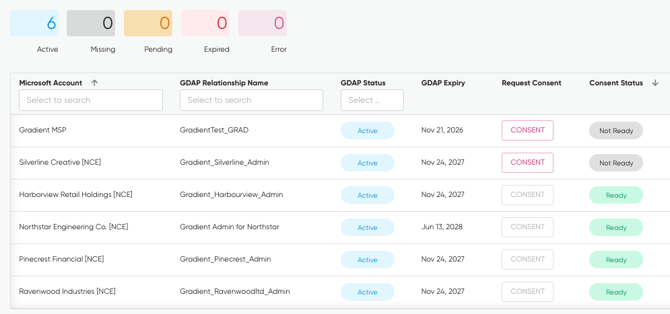
Then the wizard shows GDAP status for each customer, with a Consent button where one is needed.
Once an account is successfully consented, it will turn to "Ready" You only need one customer marked as Ready to continue, but only customers consented and marked as ready will be available for reconciliation.
Consenting your customers tenants - two methods
You consent each customer, one at a time.
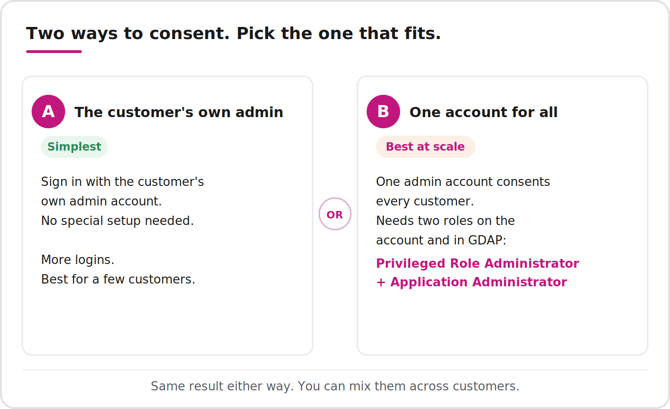
There are two ways. Both give the same result. Pick the one that fits and you the customer in front of you. You can use a different way for each customer.
Option A: Consent using your customer's own admin account
-
Consent by signing in with the customer's own admin account when the prompt shows.
-
This is the simplest option. No special setup. You just need an admin account from that customer's Microsoft tenant.
-
The trade-off is more logins. You do this once for each customer. It is slower if you have a lot of them.
Option B: Consent using one special account for all your customers (using GDAP)
If you are setup in a way to enable a special account to have the right permissions to your customers GDAP relationships - you can quickly consent all of your customers using just one account.
-
Use one admin account with the right roles to consent every customer. You still go one at a time, but you use the same account for all. No more switching logins.
-
This works best at scale, like when you have many customers to connect. Most partners pick this once they are set up.
-
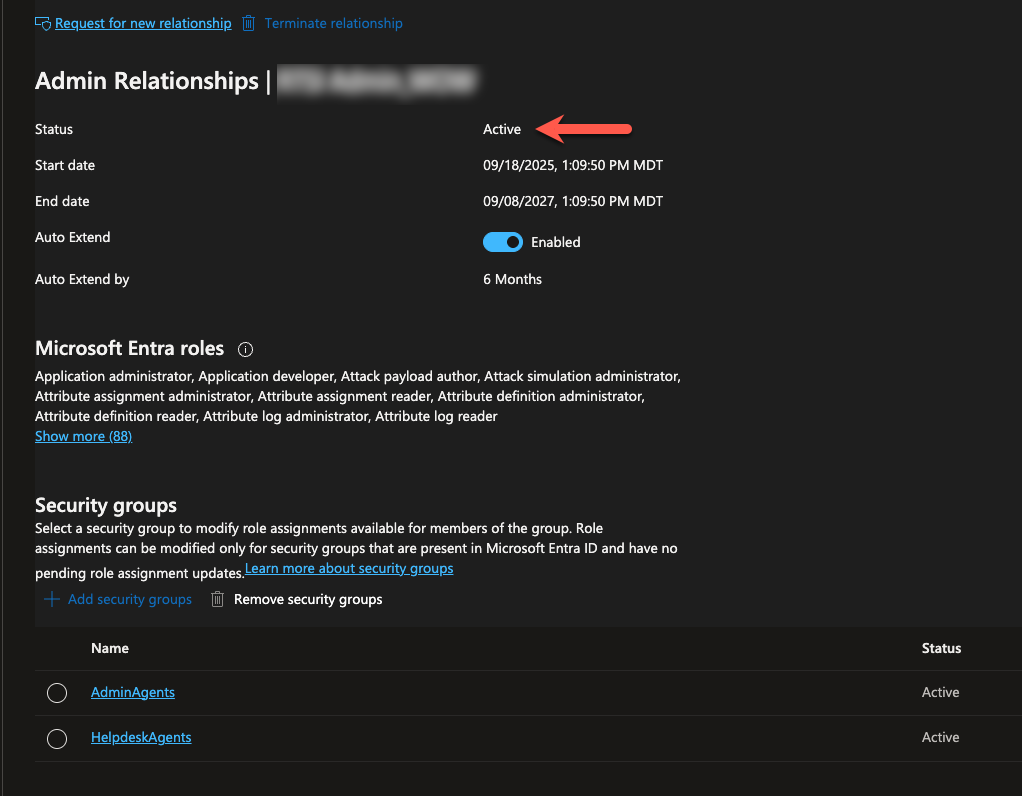
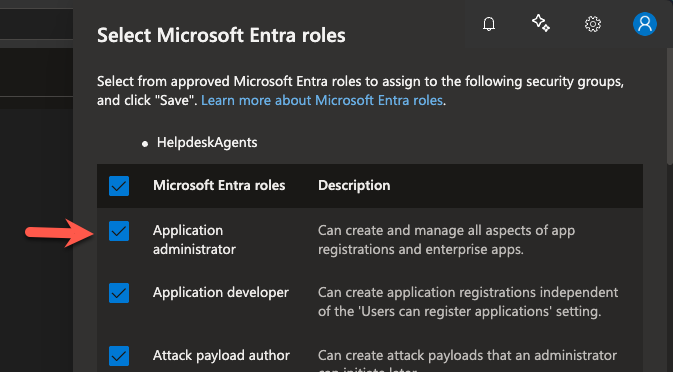
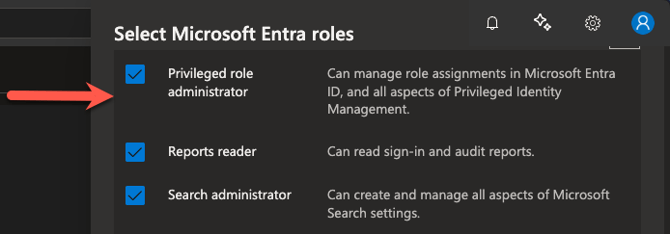
For this to work, each customer's GDAP relationship must include both Privileged Role Administrator and Application Administrator, assigned to a security group. The account you consent with must be a direct member of that security group.
You can check this in Partner Center, as shown below. If consent fails, follow the steps in Microsoft Permissions Troubleshooting (GDAP & Consent Setup).
Step 3: Match accounts
Match each Microsoft customer to its distributor account and PSA account. Exact name matches are done for you. The rest show as Unmapped. Match at least one to go on. You can fix the rest later.
Step 4: Match products
Match each Microsoft product to a PSA service. Monthly and yearly plans may use different services. Leave a product unmapped if you are not ready for it. Match at least one to go on.
Step 5: Settings
Check the billing, sync, and reconcile settings. The defaults are safe for most partners. You can change them later. Save, and you are done.