
Once the Microsoft Integration is set up, you can return at any time to review or change your configuration. Nothing in the setup wizard is permanent, and updates can be made as your customers, products, or billing preferences change.
Where to Find Microsoft Integration Settings
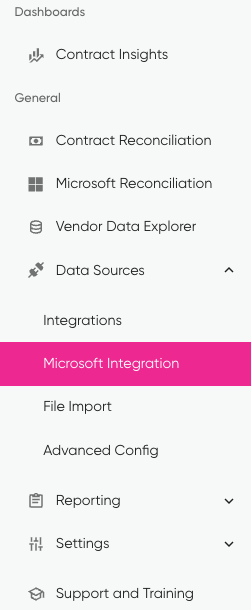
Navigate to:
Integrations → Microsoft Integration
From here, you will see the Microsoft Integration Configuration screen with tabs for:
-
Authentication
-
GDAP Review
-
Account Mapping
-
Product Mapping
-
Billing Config
These sections directly mirror the setup wizard and are safe to revisit at any time.
Authentication
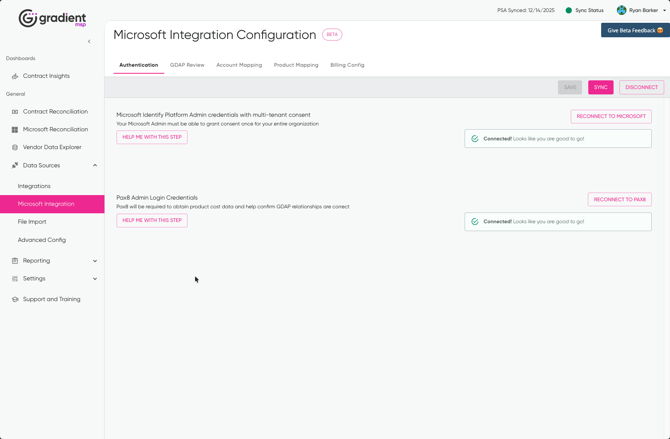
Use this section to manage and verify your Microsoft and Distributor connections.
Microsoft Authentication
This shows the status of your Microsoft Identity Platform connection.
You can:
-
Confirm the connection is active
-
Reconnect Microsoft if credentials have changed
-
Re-run tenant-wide consent if required
You should reconnect if:
-
The original admin account was removed
-
Permissions were changed in Microsoft
-
Sync errors indicate authentication issues
A green “Connected” status means you are good to go.
Distributor Authentication
This controls access to Pax8 for cost data and GDAP validation.
You can:
-
Reconnect Pax8 if credentials change
-
Resolve sync issues related to pricing or GDAP relationships
If Pax8 access breaks, Microsoft data may still load, but cost-based reconciliation will not behave correctly.
GDAP Review
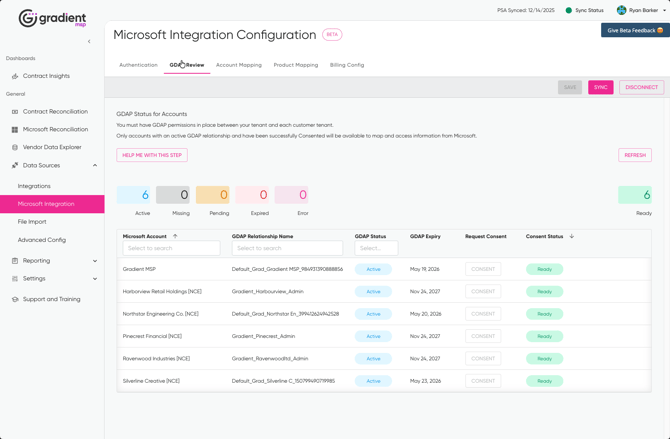
This section gives you ongoing visibility into GDAP status across all customer tenants.
You will see:
-
Counts for Active, Missing, Pending, Expired, and Error
-
A readiness indicator for each account
-
Expiry dates for GDAP relationships
Only accounts that are:
-
Active
-
Successfully consented
are considered Ready and available for reconciliation.
Common Reasons to Revisit This Page
-
A new customer was added
-
GDAP was recently approved in Pax8
- A customer is missing from reconciliation views
Use Refresh after making GDAP changes outside Gradient.
Account Mapping
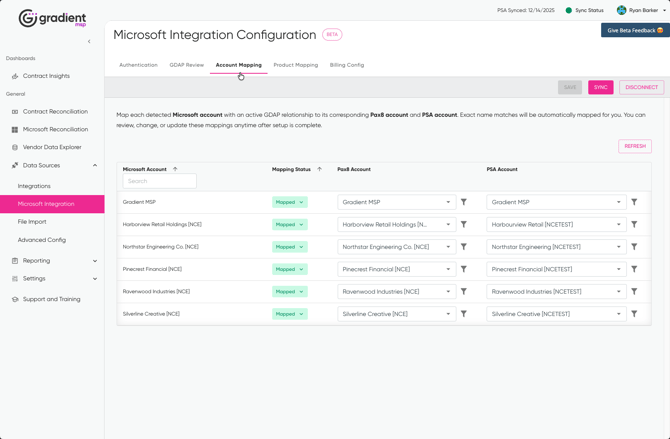
Account Mapping controls how Microsoft tenants are linked to Distributor accounts and PSA accounts.
What You Can Change
For each Microsoft account, you can:
-
Update the Distributor account mapping
-
Update the PSA account mapping
-
Fix incorrect or partial matches
Exact name matches are auto-mapped, but manual overrides are always allowed.
Changes here affect:
-
Which customers appear in reconciliation
-
Where billing updates are applied in your PSA
You can safely change mappings without re-running the wizard.
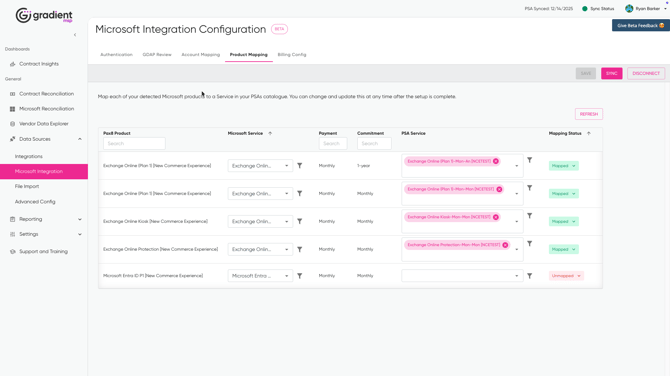
Product Mapping
Product Mapping controls how Distributor and Microsoft SKUs are tied to PSA services.
For each product, you can:
-
Change the mapped PSA service
-
Add mappings for newly detected SKUs
-
Leave products intentionally unmapped
This is especially useful when:
-
You purchase new NCE products from your distributor that needs mapping introduces new NCE SKUs
-
You change PSA catalog structure
-
You want to phase products into reconciliation gradually
Mapping changes take effect on the next sync.
Billing Configuration
Billing Config controls how reconciled changes are handled before syncing to your PSA.
Auto-Approval and Proration
For each Microsoft service, you can configure:
-
Whether changes are auto-approved
-
Minimum margin requirements
-
Proration behavior when quantities change
Key things to know:
-
Auto-approval applies immediately on sync
-
Margin rules help prevent unprofitable updates
-
Different commitment terms can have different rules
This is where you fine-tune automation versus control.
Saving and Syncing Changes
After making updates:
-
Click Save to store changes
-
Click Sync to apply them immediately
If you save without syncing, changes will apply on the next scheduled sync.
You can disconnect the integration at any time using Disconnect.
Disconnecting the Microsoft Integration will reset any consent and mapping changes you have made.
What This Means Going Forward
You never need to re-run the setup wizard just to make changes.
The configuration screen is your control panel for:
-
Authentication health
-
Customer readiness
-
Mapping accuracy
-
Billing behavior
Once you are comfortable here, the day-to-day work happens in the Microsoft Reconciliation module, which is covered in the next article.