
This article explains what the MCP Server does today, how to connect your agent, what data it can and cannot reach, and how to get the most out of it.
On this page
- What is the MCP Server?
- What it can do today
- Data access and security
- Before you start
- Step 1: Create your MCP key
- Step 2: Connect your agent
- Step 3: Verify the connection
- Example questions to ask
- Managing your keys
- Troubleshooting
- What is coming next
What is the MCP Server?
MCP stands for Model Context Protocol, an open standard that lets AI agents connect to outside tools and data sources in a controlled way. Gradient's MCP Server is the bridge between your Gradient account and a supported AI agent.
Once connected, your agent can pull your live Gradient data into the workflows you already run. You ask a question in plain language, the agent requests the relevant data through the MCP Server, and Gradient returns the answer scoped to your organization.
Version 1 is read only. The MCP Server can read and report on your Gradient data, but it cannot make changes in Gradient or in your PSA. Approvals and configuration changes are on the roadmap (see What is coming next).
What it can do today
In Version 1, the MCP Server works with your Reconcile (Contract Reconciliation) and Microsoft Module reconciliation data. Common use cases incude:
- Bring live Gradient data into your AI workflows. Pull current reconciliation dashboard data into whatever your agent is already helping you with.
- Review month end billing and ask for insights. Ask questions about your reconciliation changes to see any significant month over month changes.
- Prep for a monthly business review or QBR. Use the agent to pull current usage data for a customer and compare it to your previous QBR data.
Data access and security
The MCP Server was built so that you stay in control of your data. A few points worth understanding:
Your data is locked to your organization
Each MCP key is tied to your organization. Your organization's identifier is built into every request on Gradient's side, so an agent can only ever see your own data. It can never reach another organization's information. The agent has the same access you already have in the Gradient portal. Nothing more.
Only defined tools are exposed
Rather than giving an agent open access, the MCP Server exposes a fixed set of tools. The agent calls a tool with parameters, Gradient runs the logic on its own servers, and returns a clean, validated result. Because Gradient is not handing AI generated content back to the agent and a server side check sits in the middle of every request, exposure to issues like prompt injection is reduced.
It is not an open API
Although the keys live under the API Keys area of Settings, the MCP Server is not a general purpose API. It is scoped specifically to the MCP tools described above and is read only in Version 1.
Caution: Treat your MCP key like a password. Anyone with the key can read your organization's Gradient data through a connected agent. Store it securely and create a new key if you believe it has been exposed.
Before you start
- A supported agent. At launch the MCP Server can connect to Claude Code, Claude Desktop, and Microsoft Copilot. Support for more agents is planned.
- Node.js (if you use Claude Desktop). The Claude Desktop snippet runs a small remote bridge using
npx, which requires Node.js to be installed on your machine. You can download this via the node.js website. - Access to Gradient Settings. You create the key from inside your Gradient account, so you will need to be able to sign in.
Info: Some agents, such as ChatGPT, are not supported in Version 1 because the authentication they require is not yet available.
Step 1: Create your MCP key
- In Gradient, go to Settings > Data Settings, then open the API Keys tab.
- Click Create New Key in the top right.
- Give the key a recognizable name, for example "Claude Desktop" or "Copilot", so you know what it is used for later.
- When the Key created window appears, click the copy icon and store the key somewhere safe. It begins with
gms_mcp_live_.
Caution: The key is shown only once. For security, it cannot be seen later. If you lose it simply delete the old key and create a new one.
Step 2: Connect your agent
In the same Key created window, find the Connect your agent section. It has a tab for each supported agent: Claude Code, Claude Desktop, and MS Copilot. Choose your agent's tab and copy the snippet it provides.
Note: Always copy the snippet straight from the Key created window. It already has your unique endpoint and key filled in, so there is nothing to type by hand. The example below is only to show you the shape of it.
Claude Desktop
To use this MCP server we require NPM, which comes packaged with NodeJS.
- Visit the Node.js website here and click the Get Node.JS button to download and install it for your operating system.
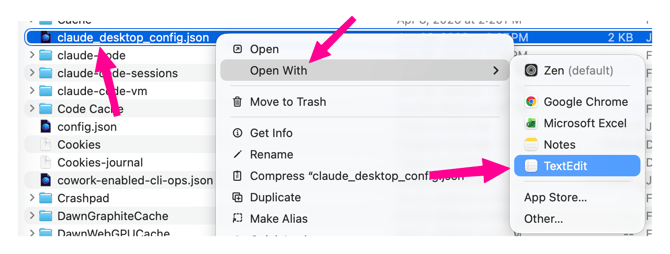
- In Claude Desktop, open Settings > Developer > Edit Config. This creates the config file if it does not already exist and opens its folder for you.
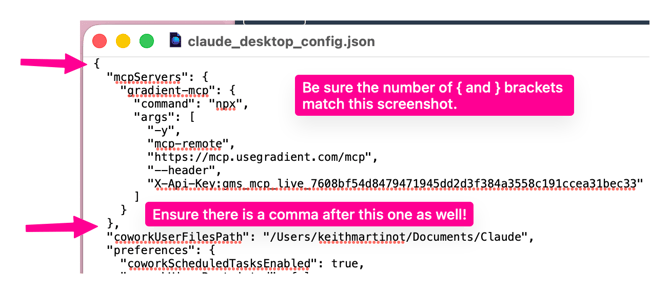
- Open the config file in any text editor and merge the snippet into the
mcpServersobject. Keep any servers that are already there, then save.- On a Mac follow these steps:
- If you have never set up a custom MCP server before, simply copy the block of text from Gradient to the top of the file. It should look like this when you are done:
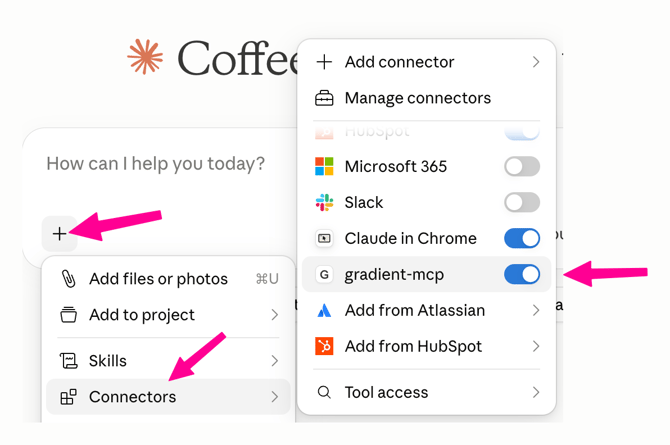
Fully quit and re-open Claude Desktop. On macOS press Cmd+Q; on Windows quit it from the system tray. Closing the window on its own is not enough. When you launch Claude Desktop you should now see gradient-mcp as an option under the Connections menu!
Claude Code and MS Copilot
Select the Claude Code or MS Copilot tab in the Key created window and follow the snippet and instructions shown there. As with Claude Desktop, the endpoint and key are already included, so copy the snippet rather than typing it.
Example questions to ask
Once connected, you can ask your agent questions in plain language. A few starting points:
- "Walk me through this month's reconciliation and flag anything that looks unusual."
- "This vendor just raised prices 5 percent. What does that do to my margins?"
- "Which clients have the thinnest margins this month?"
- "Show me the assigned versus unassigned Microsoft license counts by client."
- "Help me prepare talking points for an upcoming QBR with this client."
Managing your keys
All of your keys are listed under Settings > Data Settings > API Keys. For each key you can see its name, its type (shown as MCP Server), and when it was last used, which makes it easy to spot keys that are no longer needed. You can create as many keys as you like, name them per agent or per person, and delete any key to revoke its access immediately.
Tip: Create a separate key for each agent or team member. If one needs to be revoked, you can delete just that key without disrupting everyone else's connection.
Troubleshooting
| Symptom | What to check |
|---|---|
| The agent does not see the Gradient server | Confirm you fully quit and reopened the agent (closing the window is not enough), that Node.js is installed for the Claude Desktop option, and that the snippet was merged into the mcpServers object as valid JSON. |
| The config file will not load | A missing comma or bracket will stop the whole file from loading. Make sure the snippet is merged cleanly with any existing servers and that the JSON is valid. |
| I lost my key | Keys cannot be recovered. Delete the old key and create a new one, then update the snippet in your agent. |
| My agent is not in the list | Version 1 supports Claude Code, Claude Desktop, and MS Copilot. Other agents, such as ChatGPT, are not yet supported pending authentication work. |
| Can it change my data or push to my PSA? | No. Version 1 is read only. It can report on your data but cannot make changes in Gradient or your PSA. |
| Can it see other clients or organizations? | No. Each key is locked to your organization, so an agent can only ever see your own data. |
What is coming next
Version 1 focuses on reading and reasoning over your data. Planned for future releases:
- Support for more AI platforms.
- Updating mappings in Gradient and making configuration changes from your agent.
Note: These capabilities are on the roadmap and are not available yet. This article will be updated as they are released.