
Overview
Upload Microsoft's standard Azure Usage and Charges CSV, choose how you want to group and mark up the services, review the proposed billing in the Azure reconciliation tab, and approve. Your PSA contract is updated only after you approve with the effective date you set.
Heads up This feature is part of the Microsoft Module. You must be subscribed to the Microsoft Module to use it.
Before you start
Make sure you have the following ready:
- An active Microsoft Module subscription in Gradient
- The Microsoft Azure Usage and Charges CSV export (downloaded directly from Microsoft billing, in its original format)
- Decided how you want to group your Azure billing (see "Choose your grouping strategy" below)
About the file Use the standard Microsoft Azure Usage and Charges CSV export from the partner portal. Do not make any changes to the columns or formatting.
Custom distributor exports (for example, distributor-specific layouts) are not supported at this time.
Where to download your usage
- Log in to Microsoft Partner Center and navigate to Billing > Billing Overview.
- Click the invoice date for the prior month.
- Under Report Download, click the Invoice recon - billed option to download the CSV. It may take a few minutes for the report to generate.
- Go to Reports (NCE) on the left-hand panel. Once processing finishes, download the file.
Where to upload into Gradient
You can reach the Azure import flow in two places:
- Microsoft Reconciliation tab
- File Import > Azure Billing tab
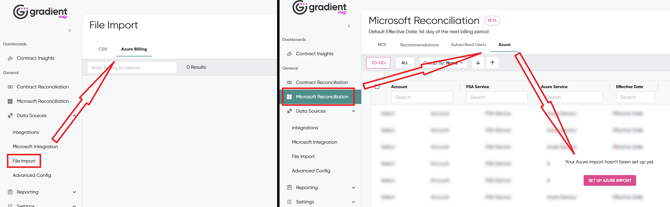
Step 1: Start a new import profile
- Go to File Import > Azure Billing.
- Click New Import Profile.
- The Import Profile wizard will open.
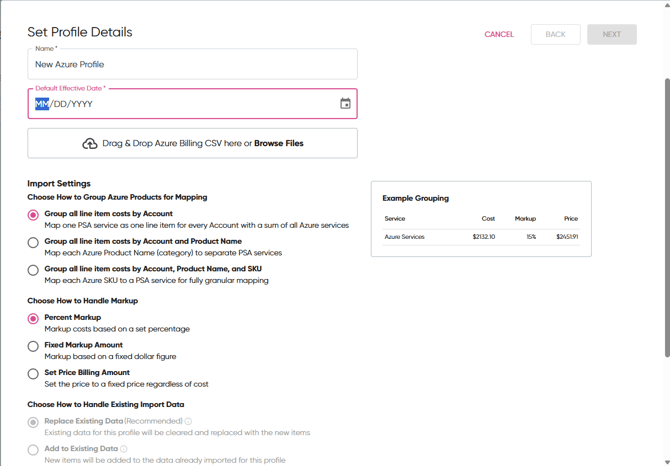
You will be asked for:
| Field | What it does |
|---|---|
| Profile Name | A label for this profile (for example, "Azure Consumption, Q2 Billing"). |
| Default Effective Date | The date that approved billing changes will apply from. This clears on every import, so you must set it fresh each time you import. |
| File Selection | Upload your Microsoft Azure Usage and Charges CSV. |
Step 2: Validate the file
Once you upload, Gradient will:
- Auto-detect the CSV headers
- Filter to Azure rows only (any non-Azure lines like M365 are automatically filtered out)
- Show you a preview of the first 20 rows so you can confirm you uploaded the right file
If the preview looks wrong (wrong tenant, wrong period, wrong export type), go back to the beginning of the wizard and upload the correct file.
Step 3: Choose your grouping strategy
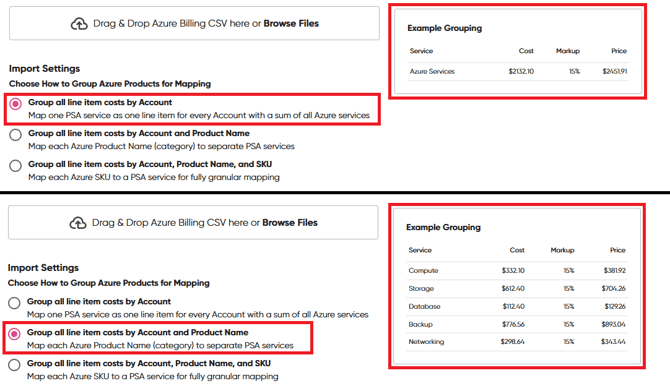
This is the most important decision in the import flow. Grouping controls how granular your Azure billing becomes inside your PSA.
You have three options:
| Grouping | What it creates | Best for |
|---|---|---|
| By Account | One "Azure Consumption" line item per account | Simplest invoicing, consolidating all usage into a single line item |
| By Account + Product | One line per Azure product category per account (Compute, Storage, Backup, etc.) | A balance of visibility and manageability for most partners |
| By Account + Product + SKU | Full granular mapping that mirrors the Microsoft invoice exactly | For clients who demand per-SKU visibilty on their monthly Azure usage |
Whichever option you choose, a preview will show you what to expect if you choose that import option right in the wizard:
Step 4: Configure markup
Markup is configured at the import profile level and applied consistently across the services in that profile.
You have three markup methods:
| Method | How it works | Example |
|---|---|---|
| Percentage Markup (default 10%) | Adds a percentage margin on top of Azure cost | $100 cost + 15% = $115 billed |
| Fixed Dollar Markup | Adds a fixed dollar amount on top of cost | $100 cost + $20 = $120 billed |
| Fixed Billing Price (Set Price) | Overrides the usage cost with a flat price you set | Useful for flat-fee or bundled Azure managed services |
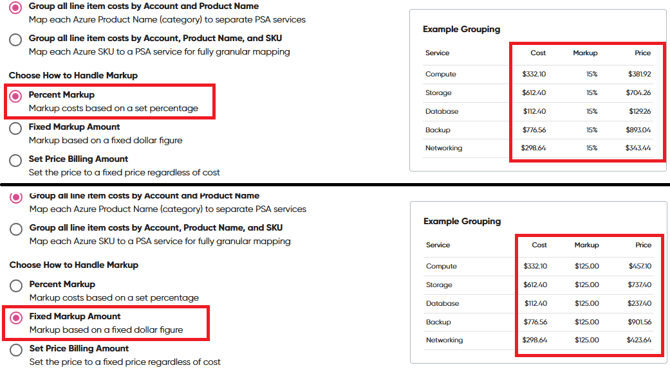
A few things to know about markup:
- The preview updates dynamically as you change the markup type or amount, so you can see exactly what the partner-facing bill will look like before you approve anything.
- Markup is service-specific, not global. You can set a different markup on each service if you want.
- If you change the markup type on a future import (for example, from percentage to fixed price), all calculations recalculate accordingly.
- You can capture a default markup amount during initial profile creation so you don't have to enter it manually for each service.
Step 5: Map services to your PSA
Once grouping and markup are set, Gradient maps the resulting services to your PSA contracts.
- The mapping screen behaves the same way as the rest of Gradient's account and service mapping. If you've connected other integrations, this will be familiar.
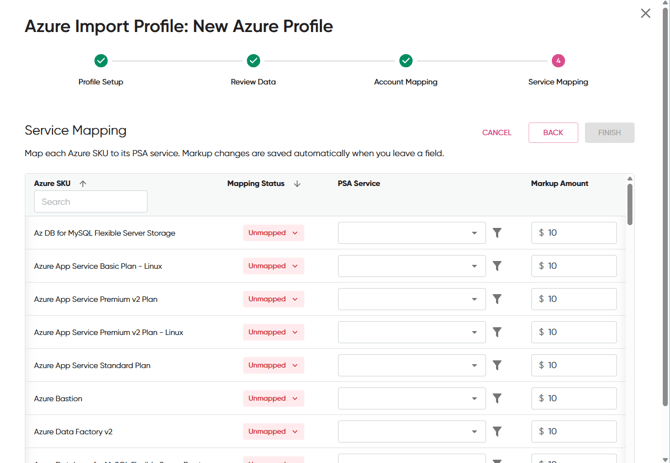
Step 6: Review and approve
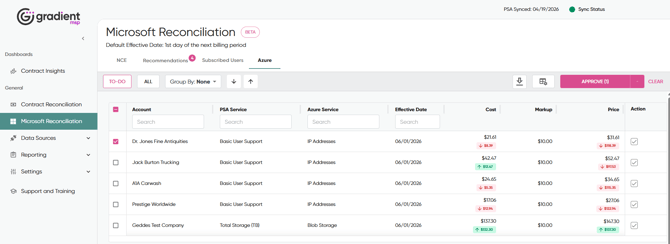
All imported items route to the Azure reconciliation tab of the Microsoft Reconciliation screen for review.
In the reconciliation tab you can:
- Review each line item with its grouping, cost, markup, and final bill
- Override the effective date inline if a specific item needs a different date than the profile default
- Approve individually or in bulk
Once you approve, the items push to your PSA contract with the effective date applied.
Re-importing later
When you upload a new Azure CSV in a later billing cycle:
- The effective date will be blank and require a new selection.
- You can change the markup type or amount, and all calculations will update.
- Service mappings you created in earlier imports are remembered, so you only need to map newly seen services.
What this feature does and does not do
This is:
- An operational reconciliation workflow for Azure consumption billing
- A bridge between Microsoft's standard Azure export and your PSA contracts
- A controlled, approval-gated process where you stay in control
- Compatible with any CSP or distributor model that gives you access to the standard Microsoft Azure Usage and Charges CSV
This is not:
- Real-time Azure synchronization
- Fully automated cloud cost management
- Azure optimization or FinOps tooling
- A native Azure API integration
- A replacement for your billing judgement
Frequently asked questions
Does this work with my distributor? The workflow is built around the Microsoft-standard export, as a result is vendor agnostic by design. Even if you go through a distributor, you can still pull the Microsoft-standard export.
Can I buy Azure Import on its own, without the rest of the Microsoft Module? No. Azure Consumption Billing Import is included as part of the overall Microsoft Module. It is not available as a standalone add-on at this time.
What file format does the import need? The Microsoft Azure Usage and Charges CSV export, available directly from Microsoft billing and straight into Gradient. No reformatting, column mapping, or cleanup needed. The system validates headers automatically and filters to Azure-only rows.
Is this fully automated? Similar to other areas of Gradient, all imported items route to the Azure reconciliation tab for your review and approval before any PSA contract is updated.
What if I'm only interested in Azure billing and don't have GDAP or NCE set up? You can still use Azure Consumption Billing Import without configuring any other part of the Microsoft module.
What happens to "new found" revenue items (Azure services that don't match an existing contract yet)? For now, items without a contract are filtered out of the recommendations view. Inline contract assignment for newfound items is on the roadmap. If you spot Azure services that should be billing but aren't, contact support and we'll help you set up the contract assignment.
Need help?
If you run into trouble, the most common issues fall into one of three buckets:
- File format issues (wrong export, missing columns, encoding problems): pull a fresh export directly from Microsoft billing in the standard Usage and Charges format.
- Grouping confusion: review the "Choose your grouping strategy" section above. If you started at SKU level and regret it, contact support.
- Mapping or markup not behaving as expected: trace it back to the import file, the grouping config, or the markup logic, those are the three inputs that drive everything downstream.
Still stuck? Email support@meetgradient.com or open a ticket.