
Before You Start
To complete the setup successfully, you will need to have completed the prior article enabling all the permissions for Microsoft, Pax8, and your clients GDAP.
If you haven't done this yet, please go back to this article and complete all of the steps.
If you missed a step, the wizard will call it out and referencing the guide linked above will help you find the right place to adjust those permissions.
Note that this wizard will only work if you sign in to Gradient with your Microsoft account, not with the email magic link. If you sign in with the email magic link you will need to sign out, and sign back in with Microsoft.
Table of Contents
Step 1: Connect to CSP and Microsoft
Step 2: Authentication and Verification
Step 5: Settings and Customization
Step 1: Preparation
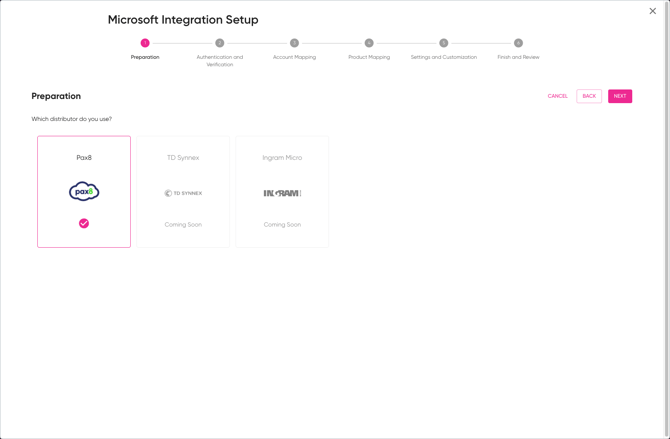
Choose Your Distributor
Select Tier 2 CSP on the first page. Tier 1 CSP will be supported at a later date. Click next.
Select the distributor you use for Microsoft licensing. As it stands, the only vendor which can be selected is Pax8.
Once selected, click Next to continue.
Review the Readiness Checklist
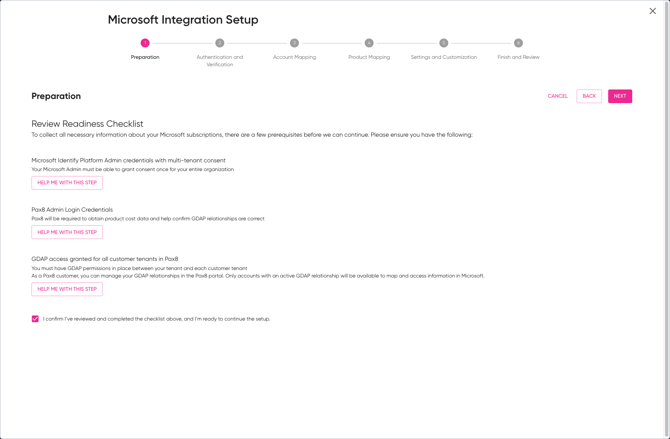
This checklist ensures everything required for a clean Microsoft connection is in place.
You will review and confirm:
-
Microsoft Identity Platform Admin Access
Your Microsoft admin must be able to grant multi-tenant consent once for your entire organization.
-
Pax8 Admin Access
Pax8 is used to pull cost data and validate GDAP relationships.
-
GDAP Access for Customer Tenants
Only customers with active GDAP relationships will be available for mapping and reconciliation.
This is just a reminder in case you didn't complete the steps in the prior article.
Once complete, check the confirmation box and click Next.
Step 2: Authentication and Verification
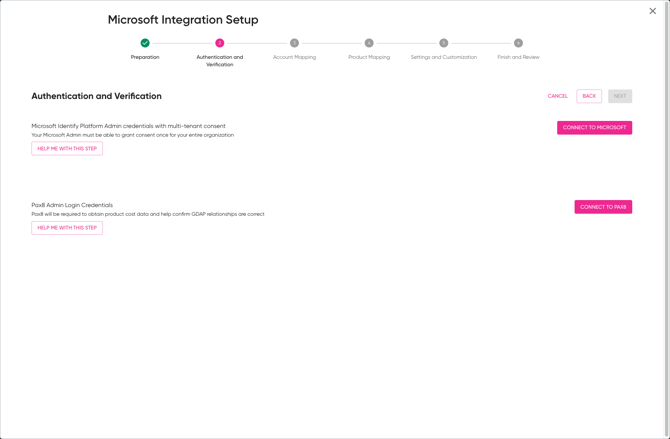
Connect to Microsoft
Click Connect to Microsoft and sign in using your Microsoft admin account. Reminder: this account must be a global admin for your MSP tenant.
When successful, you will see a confirmation message showing you are connected.
If you see errors here, it usually means the admin account does not have sufficient permissions.
Connect to Pax8
Click Connect to Pax8 and authenticate with your Pax8 admin credentials.
Once connected, you will see a confirmation message for Pax8 as well.
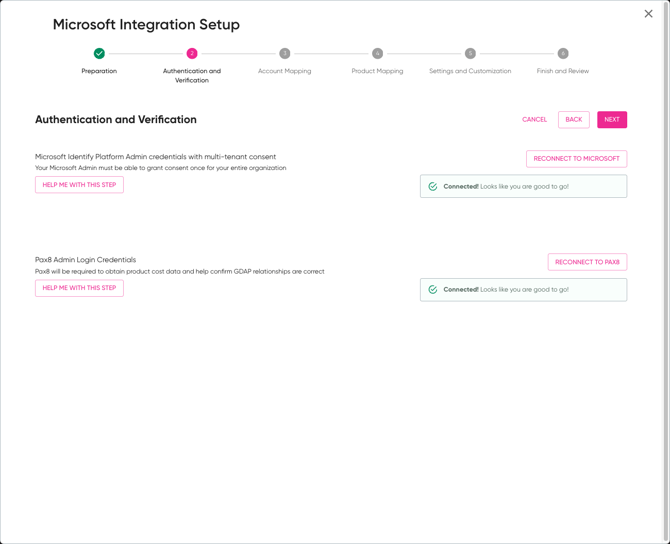
GDAP Status Review
After both connections are complete, we validate GDAP status for each customer.
You will see:
-
Active, Missing, Pending, Expired, or Error counts
-
A list of customers and their GDAP status
-
A Consent action where required
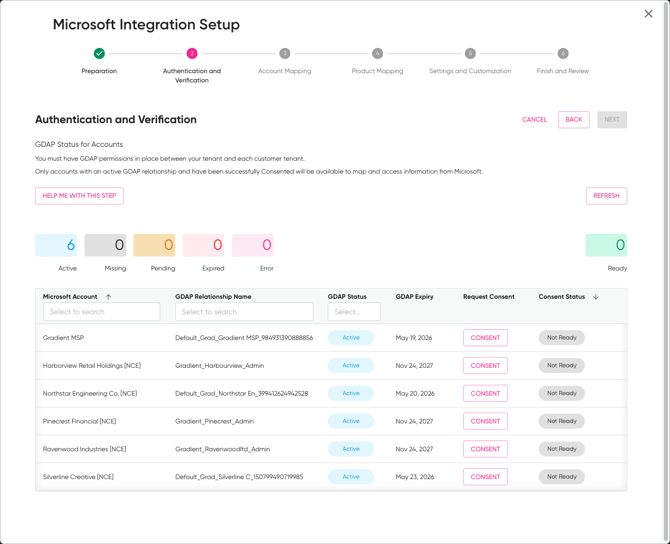
Only customers with:
-
Active GDAP
-
Successful consent
Will move into a Ready state.
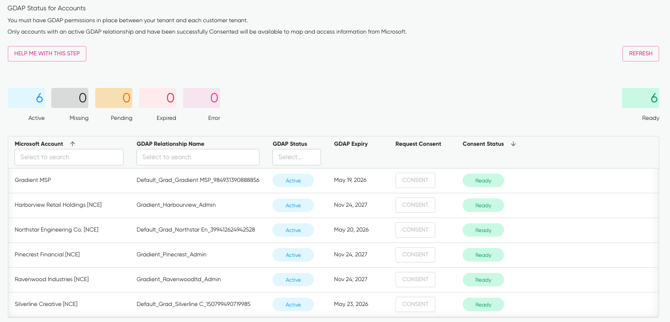
Click Refresh after granting consent to update statuses.
You cannot continue until at least one account is Ready.
Step 3: Account Mapping
Now we map Microsoft customers to Pax8 accounts and PSA accounts.
How Mapping Works
-
Exact name matches are mapped automatically
-
Anything unmatched will show as Unmapped
-
You can change mappings now or later
For each Microsoft account:
-
Select the matching Pax8 account
-
Select the matching PSA account
Once both are selected, the status updates to Mapped.
You must map at least one account to continue.
Click Next when ready.
-gif-1.gif?width=670&height=544&name=2025-12-19_10-14-15%20(1)-gif-1.gif)
Step 4: Product Mapping
This step links Microsoft products to services in your PSA.
For each detected Microsoft subscription in your distributor, you will see:
-
Product name
-
Payment frequency
-
Commitment term
-
Mapping status
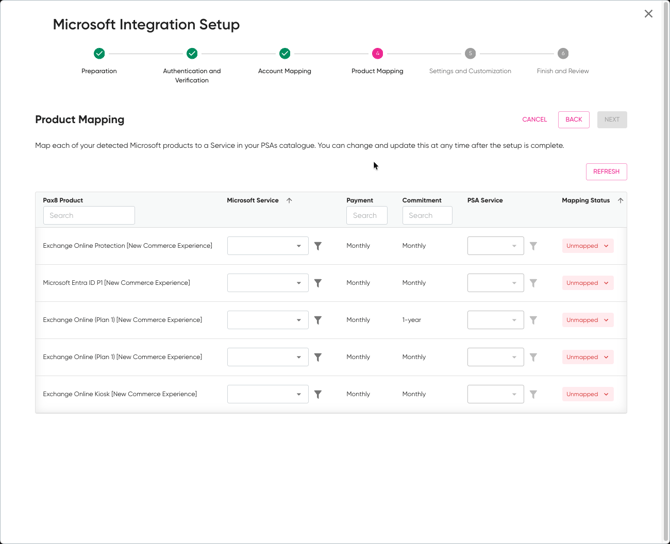
What You Need to Do
For each row:
-
Select the appropriate PSA Service
-
Leave products unmapped if you do not want them reconciled yet
Common examples:
-
Monthly vs annual commitments map to different PSA services
-
Some SKUs may intentionally stay unmapped during initial setup
You can return and update product mappings at any time after setup.
-gif.gif?width=670&height=544&name=2025-12-19_10-16-17%20(1)-gif.gif)
Once at least one product is mapped, click Next.
Step 5: Settings and Customization
Depending on your configuration, this step may include:
-
Billing behaviour
-
Reconciliation preferences
-
Sync options
Review the settings carefully. Defaults are safe for most partners.
You can adjust these later.
Step 6: Finish and Review
This final step confirms:
-
Connections are active
-
Accounts are mapped
-
Products are mapped
-
The integration is ready to sync
Click Finish to complete the setup.
At this point, your Microsoft Integration is live.
What Happens Now?
Once setup is complete:
-
Microsoft subscription data begins syncing
-
You can access the Microsoft Integration module from the left navigation
The next article covers how to use the Microsoft Integration day to day, including how to interpret data, handle reconciliation, and spot issues quickly.
Coming Up Next
How to Use the Microsoft Integration
-
Navigating the module
-
Changing settings after the initial setup
-
Reviewing and reconciling Microsoft billing process
-
Common workflows and best practices