This guide will walk you through how to:
-
Create a Microsoft Partner Center login has the required permissions (or confirm permissions for an existing user)
-
Confirm or create GDAP (Granular Delegated Admin Permissions) relationships
A quick note on Microsoft Security
Microsoft locks down access to customer subscription data behind several security layers. These aren’t arbitrary hurdles. They exist because Microsoft requires explicit, auditable consent before any tool (including Gradient) can access data across customer tenants.
Right now, Gradient only needs a small amount of information from Microsoft to power the early access version of this integration. However, the foundation you set up here is what enables every advanced feature we’ll deliver on top of this integration. Things like deeper license insights, renewal visibility, margin analysis, and automated billing alignment.
To support all of that securely, we need to build on Microsoft’s official partner security model, which includes:
-
GDAP relationships (your delegated access to customer tenants),
-
Partner Center roles (what your account can do), and
-
Proper tenant-level consent (granting Gradient permission to access Microsoft APIs).
Once these pieces are in place, everything else becomes seamless. Syncing runs automatically, subscription data stays in sync, and new features can be layered in without repeating any setup work.
Step 1: Create or Verify Microsoft Partner Center user permissions
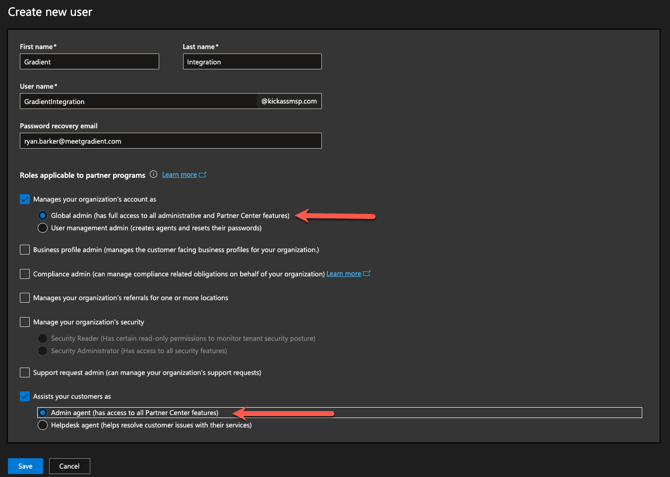
You’ll need a Microsoft account with Admin Agent and Global Admin permissions to connect to Gradient and ensure you are able to authenticate and consent access to your customers. We recommend creating a new account to manage this, but you can use any account that meets these criteria.
To create a user with these permissions:
-
Go to the Microsoft Partner Center
-
Sign in with an account with Global Administrator role
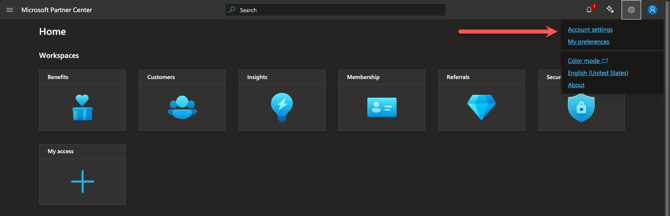
- In the right-hand menu, select Account Settings
- Create a new user called GradientIntegration
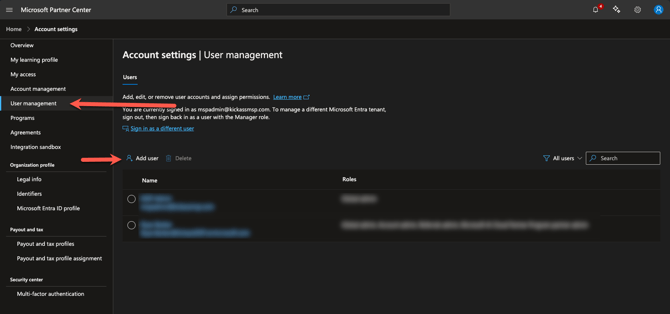
-
Add the following Roles and permissions.
-
Global Admin
-
Admin agent
-
Remember: You can use any user that has both Admin Agent and Global Admin already if you don't want to create a new user.
Step 2: Confirm your GDAP relationships status
Gradient requires GDAP (Granular Delegated Admin Permissions) relationships to access customer data securely.
Pax8 creates GDAP relationships by default, but depending on your configuration additional changes and permissions may be needed.
To check your GDAP relationships:
-
Go to Microsoft Partner Center
-
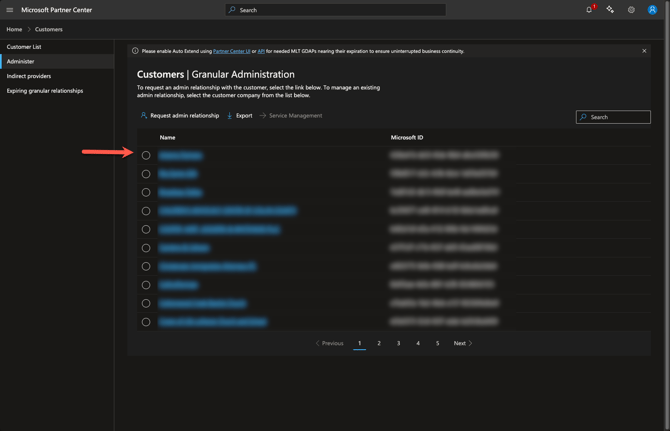
In the left menu, navigate to Customers → Administer.
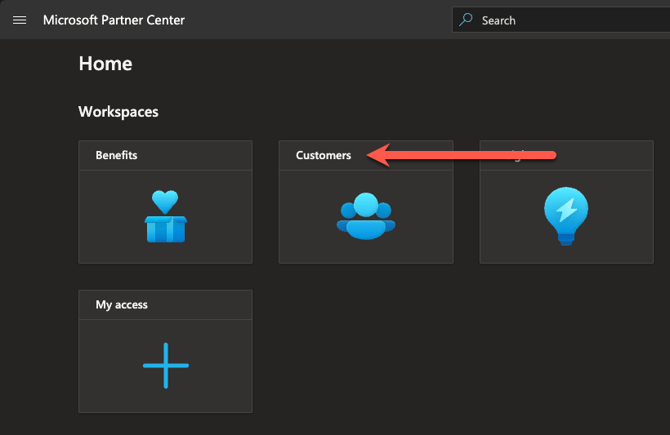
Review the list of customers. You may need to review each one to verify GDAP status. Don't worry, we show you all status items within our application during the setup process, but for now - simply reviewing your current list will help ensure that process goes smooth:
-
If you see each of your customer tenants listed with an Active GDAP relationship, you’re good.
-
If you don’t see your customers listed or the status shows Expired or Pending, they will need to be active before you will be able to use them in Gradient.
- For early access testing, at least one account must have an Active GDAP relationship. Only those customers that have active GDAP relationships with the correct permissions will be able to be processed properly.
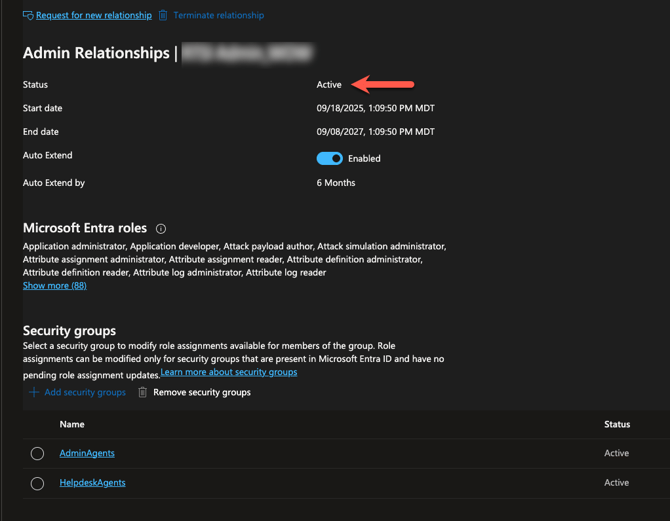
Each GDAP relationship will need two Microsoft Entra roles assigned for us to access your reconciliation information
The two roles are:
- Application administrator
- Privileged role administrator

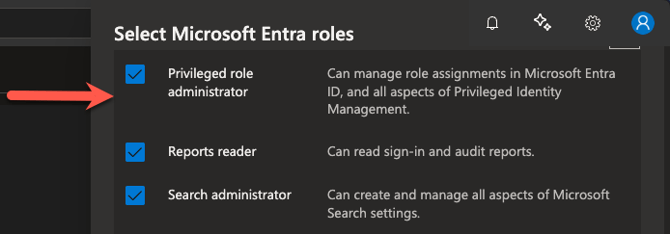
Wait, how come I don't see these roles?
If these roles aren't available for you to select, it's most likely the initial scope of your GDAP setup did not originally include these.
Or, to create a new GDAP relationship:
- In the Partner Center, go to Customers → Administer
- Click Request admin relationship.
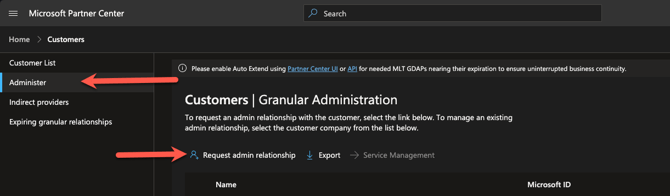
- Set the relationship duration (up to 730 days / 2 years).
- Click Finalize Request
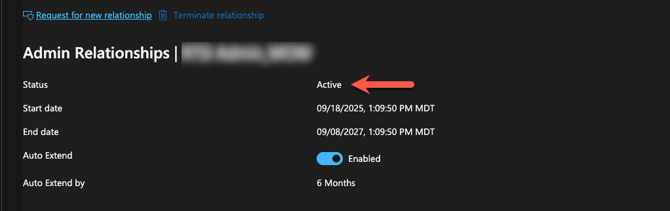
- Once accepted, the relationship will show as Active

You can have multiple GDAP relationships in place for a particular customer, but ideally your GDAP relationships will contain most or all Entra roles, and then managed through Entra security groups.
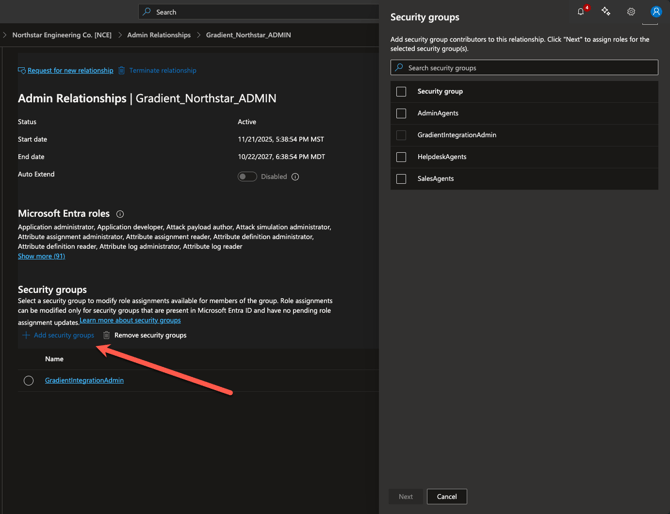
Then add a Security group with the GradientIntegration user assigned. You can create your own security group if you like (say GradientIntegrationAdmin as an example) or any group.
For official Microsoft documentation, see Set up GDAP relationships