
During Microsoft Integration setup, we must complete Microsoft consent for each customer tenant we access subscription details for.
There are two valid approaches:
-
Option 1 (Recommended): Consent using one delegated partner account (GDAP-based)
-
Option 2 (Alternative): Consent using each customer’s tenant admin login
Both work. The difference is speed, operational friction, and how your Microsoft security posture is implemented.
Option 1: GDAP Delegated Consent (Recommended)
Use one authorized partner account to consent across all customer tenants where you have GDAP delegated access.
Best for:
-
Most MSPs using Microsoft partner best practices with GDAP
-
Faster setup across many tenants
-
Minimizing credential switching and operational overhead
Outcome:
-
Sign in once
-
Click through consent for each customer tenant one-by-one
-
No tenant admin credential juggling
Option 2: Per-Tenant Admin Consent
Use each customer tenant’s admin login to consent directly within that tenant.
Best for:
-
MSPs with strict separation policies that do not permit delegated consent workflows
-
Edge cases where delegated access is not available for some tenants
Trade-offs:
-
Slower setup (lots of logins)
-
Higher friction, more room for human error
-
Usually only used when Option 1 is not possible or not permitted
Option 1: GDAP Delegated Consent (Recommended)
Summary
If GDAP relationships and roles are configured correctly, you can consent for multiple tenants using a single admin account.
Requirements checklist (before you start)
Confirm the following:
-
The partner user you are signing in with has the required delegated roles
-
This should be an account intended for partner administration (ideally not a personal day-to-day user account)
-
It should follow your internal security controls (MFA, conditional access, etc.)
-
You can access the customer tenant via delegated administration
-
If you cannot access the tenant with delegation, consent will fail and you may need Option 2 for that tenant
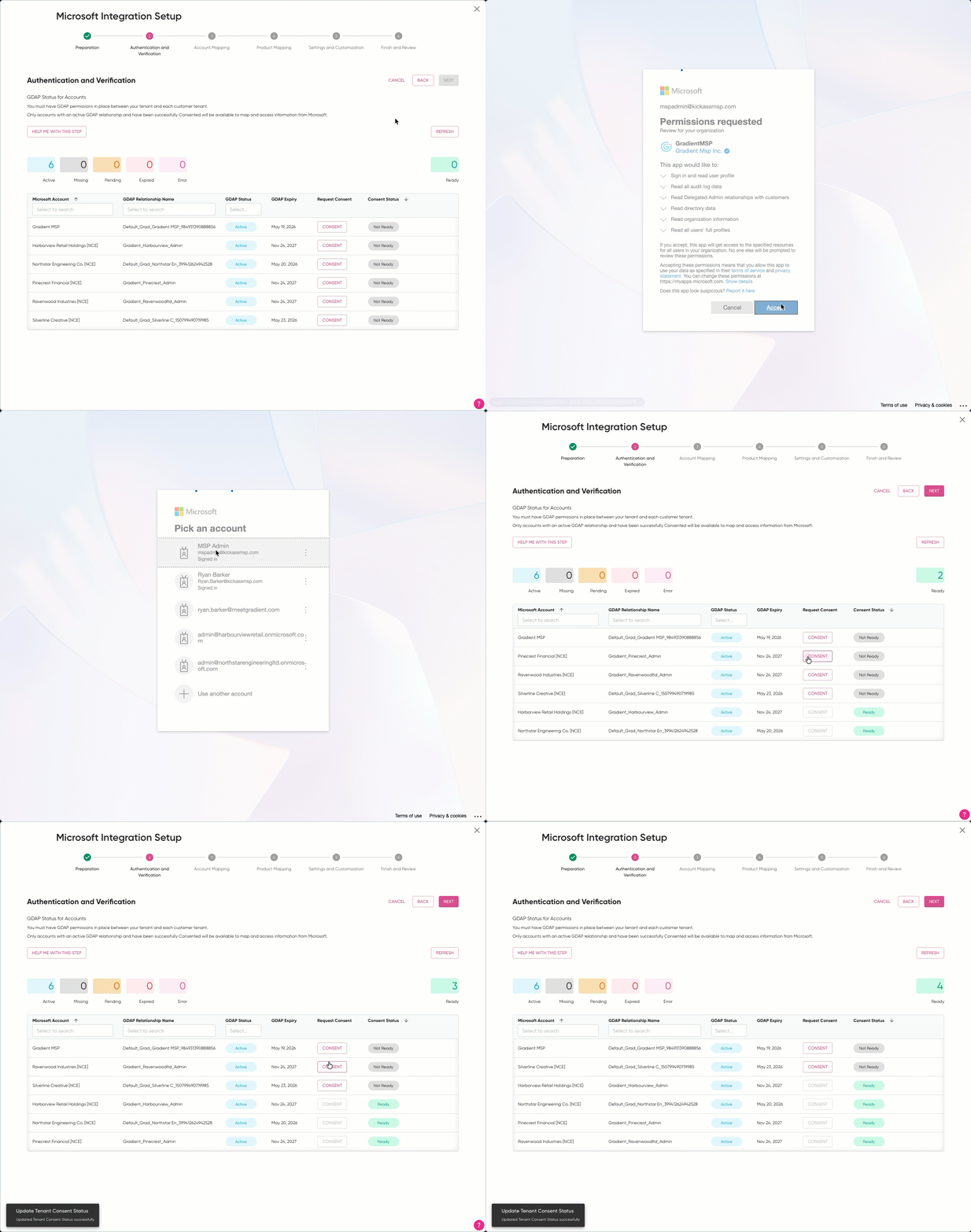
Step-by-step consent flow
-
Sign into the Microsoft consent prompt using your partner delegated admin account.
-
In our wizard, select the next customer tenant to authorize.
-
Complete the consent prompt.
-
Return to the wizard and repeat for the next customer.
-
Continue until all required tenants are authorized.
Expected behavior:
-
You remain signed in with the same account
-
Each tenant consent is a repeatable click-through process
Troubleshooting indicators (Option 1)
If any of the below happens, it usually points to missing or incomplete GDAP delegation:
-
You are prompted for a customer tenant admin login
-
Consent fails with permissions/authorization errors
-
The tenant does not appear in the list of available customers
Resolution path:
-
Confirm GDAP relationship exists and is active
-
Confirm correct roles are assigned
-
If you must proceed immediately, use Option 2 for that tenant
Option 2: Per-Tenant Admin Consent (Alternative)
Summary
You may consent to each tenant by signing in as an admin user in that tenant.
When to use this
-
Your security policy does not allow delegated partner consent flows
-
You intentionally require each customer to provide direct tenant admin consent
-
GDAP is not configured and cannot be configured in the required timeframe
-
You have a small number of tenants and prefer direct tenant-by-tenant control
Step-by-step consent flow
-
In the wizard, select the customer tenant.
-
When the Microsoft consent prompt appears, sign in using that customer tenant admin credentials.
-
Complete consent.
- Repeat for the next customer tenant.
This is slower and operationally heavy, but valid.