
Notes and Tags
Basics
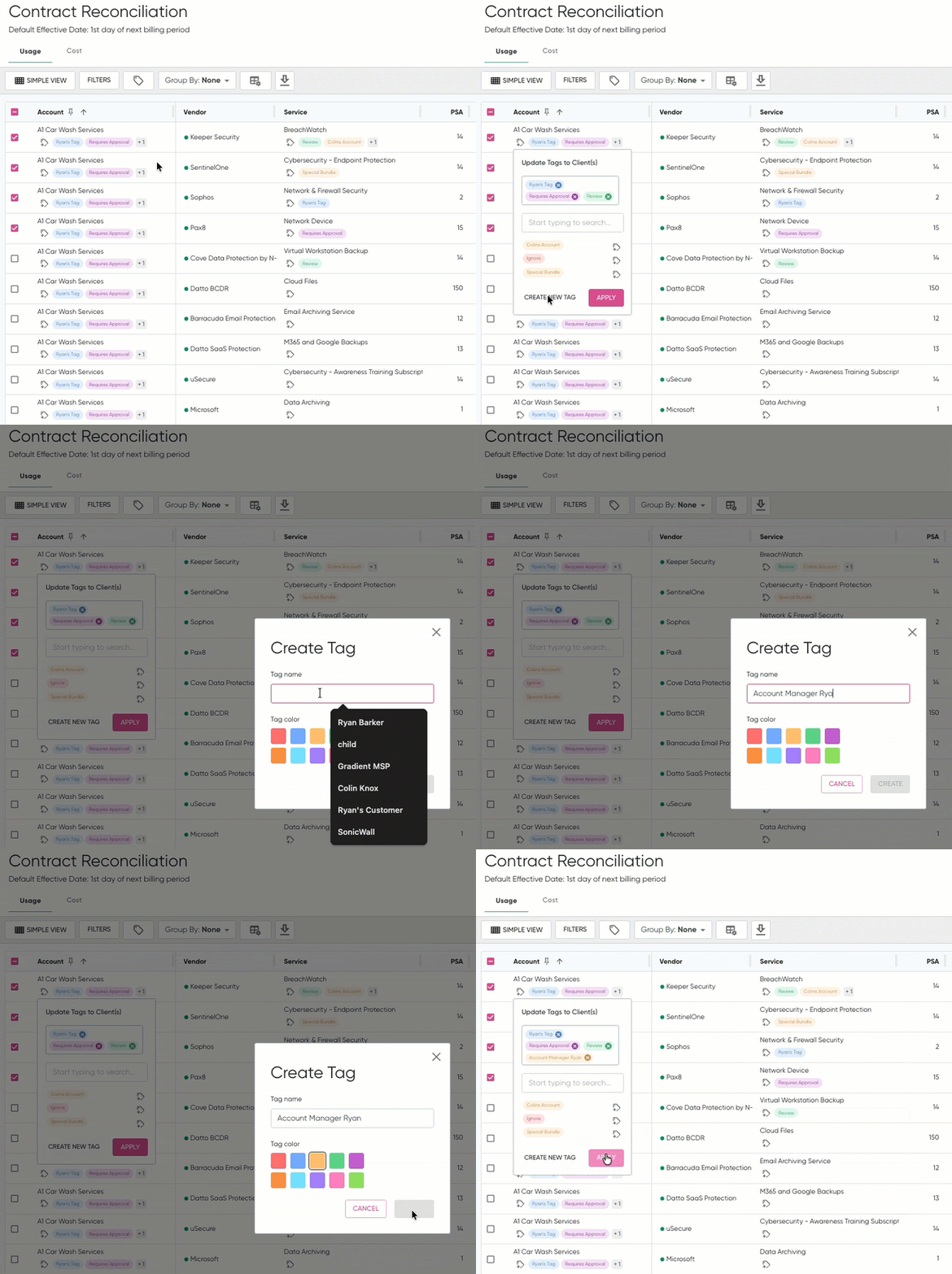
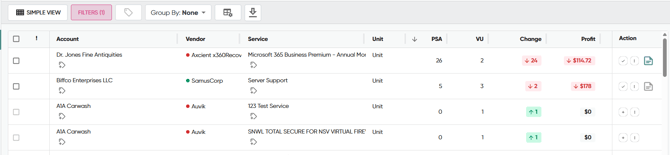
Tags are available on your dashboard, where they can be viewed directly beneath Accounts and Services on your reconciliation dashboard.
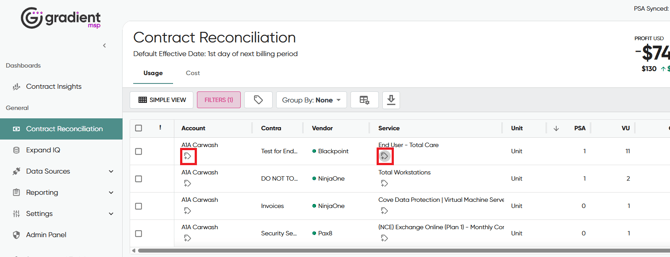
By selecting the icon below an account or service, you can open the tags option and add a tag to that account or service, or create new tags.
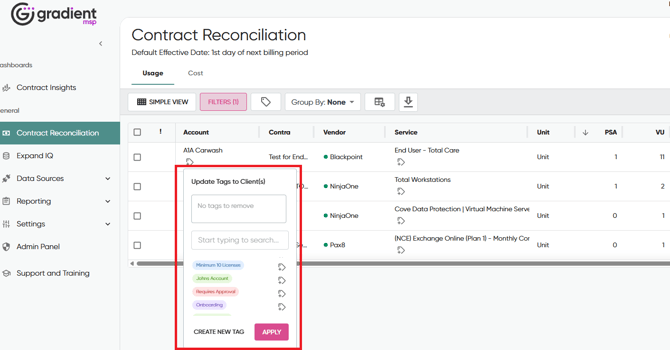
Creating New Tags
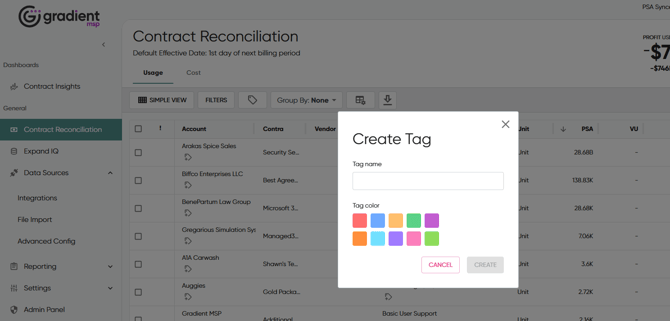
In the open Tags menu, use the "Create New Tag" button to create a new tag to add to an account or service. Give the tag a name, and select a color for it, then hit "Create"
You can then add an existing tag to the Account or Service you have selected by hitting the  button beside a given tag while in the tags menu.
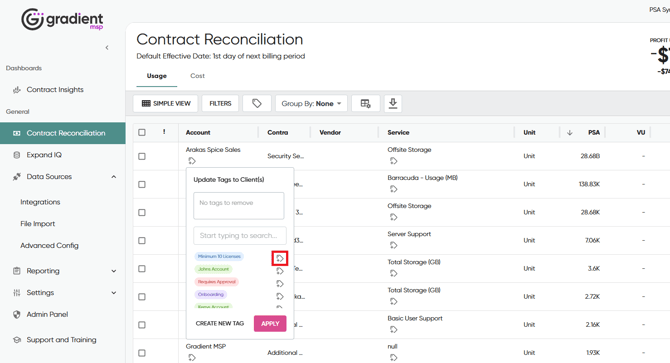
Once you've applied the tags you want, hit "Apply". This will attach the tag to that Account or Service. Add tags to as many Account and Services as you'd like.
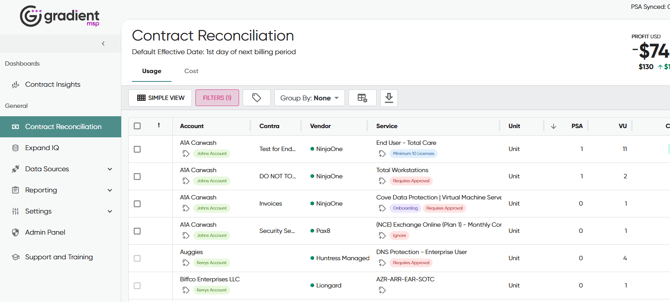
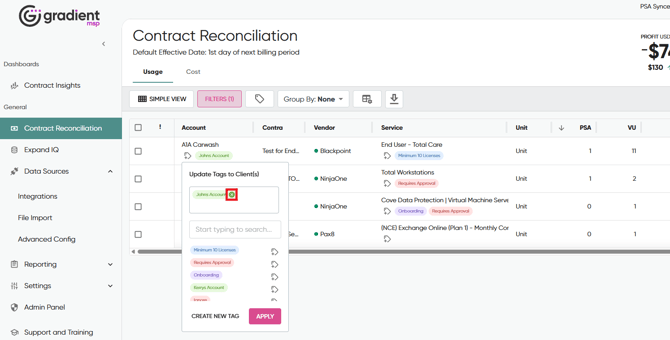
Tags can be removed from a service at any time by hitting the "x" on the tag in the list of tags on a given Account or Services tags list in the tag menu.
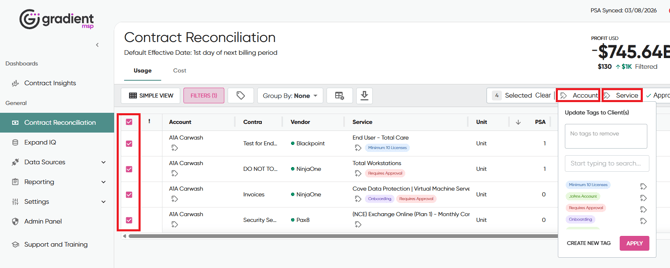
You can also bulk add or remove tags that you have created. Select the lines that you wish to add in the checkboxes at the far left, and then select the "Account" or "Service" tag options to the upper right of the dashboard to add tags to all accounts or services that have been selected.
Filtering By Tags
You can use the Tags filter to filter your dashboard for any specific combination of account or service tags you would like!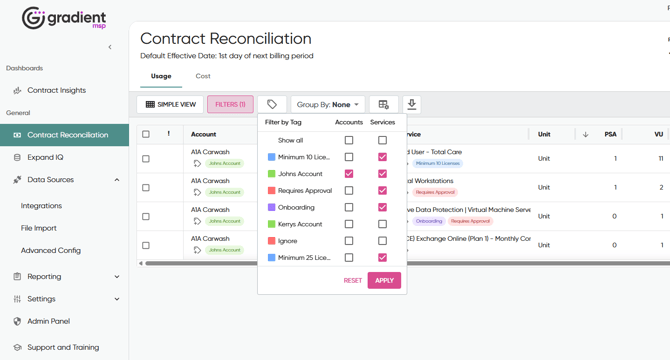
Managing Tags
If you navigate in the left-hand menu to Data Sources > Advanced Config > Tag Management, you can manage your created tags.
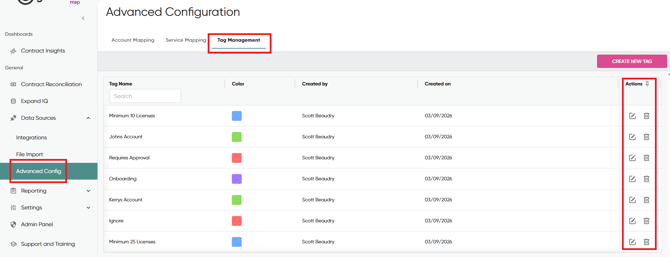
On this screen, you can delete tags you have created with the trash can icon in the right-hand "Actions" menu, or edit the name and color of any tags you have created with the write icon in the "Actions" menu.
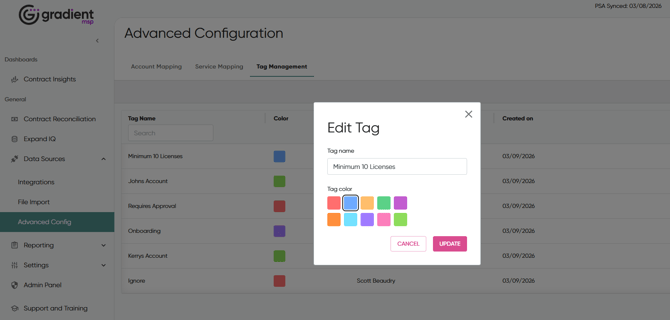
Any tags that are deleted from this menu will automatically be removed from all tagged accounts or services on the Contract Reconciliation dashboard.
Notes
Notes are a highly flexible feature which lets you attach a note to a specific service line in Gradient to remind yourself or other reconcilers of important information about that particular item.
To add a Note to a given line, select the  icon in the Action column at the far right of the reconciliation dashboard:

Then you can add in whatever note you would like to that line. Just hit "Save" when you're done.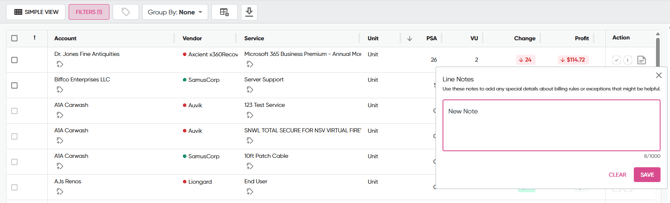
You can adjust or delete the note at any time by selecting it again. The Note icon will change to a green hue if there is an active note on a given line, as seen below.
Notes can currently only be added to service lines that are not New Revenue lines. You'll have to reconcile any New Revenue lines once and then wait for them to return to the dashboard for the next billing cycle if you'd like to add a note to that line.