
Table of Contents
- The Short Version
- What QuickSync Does
- What Full Sync Does
- When to Use Each
- Reading the Sync Status Screen
- Scheduling Automatic Syncs
- PSA Syncs vs Vendor Syncs
- Troubleshooting
The Short Version
Gradient pulls data from your PSA and vendor integrations in two ways:
- QuickSync pulls only what has changed since the last sync. It's fast, lightweight, and the default for regular reconciliation work.
- Full Sync pulls everything from scratch. It's slower, more thorough, and reserved for specific situations where a QuickSync isn't enough.
The rule of thumb: If you're not sure which one to use, use QuickSync. It's correct for the vast majority of everyday situations. Reach for Full Sync only when something specific calls for it.
What QuickSync Does
QuickSync asks each integration for just the records that have been added or modified since the last successful sync. This makes it quick (usually seconds to a few minutes) and keeps API usage low.
Use QuickSync for:
- Regular monthly reconciliation work.
- Picking up a recently added customer or service that's already been configured in the source system.
- Refreshing data mid-month to check on a specific customer or vendor.
You can run a QuickSync from the Sync Status screen in the left-hand navigation. The Quick Sync All button runs QuickSync across all your connected integrations at once.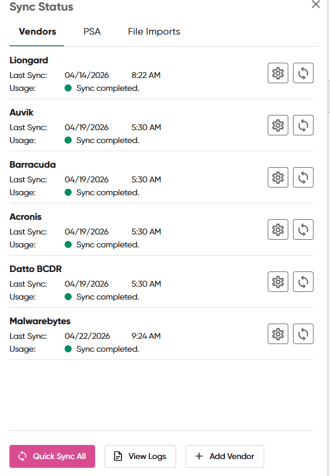
What Full Sync Does
Full Sync clears Gradient's cached view of the data from that integration and pulls everything fresh. This is slower (minutes to tens of minutes depending on volume) and uses more API calls, but it guarantees Gradient's view matches the source system exactly.
Full Syncs are available per-integration rather than as an all-at-once action. For your PSA, you'll find it under Settings > Data Settings > PSA Configuration > Start Full Sync. For vendors, you'll find the equivalent option inside the integration's own configuration screen.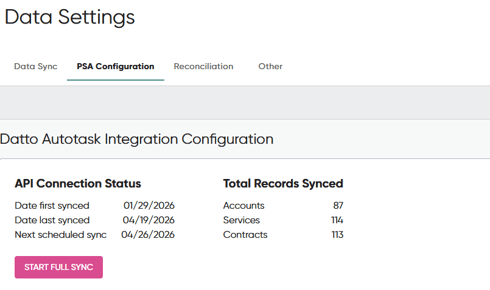
Top
When to Use Each
Here's a practical guide:
|
Situation |
Sync type |
|
Starting monthly reconciliation |
Full PSA sync + Quick Sync All for vendors |
|
Mid-month check on a specific customer |
Quick Sync All |
|
You just renamed a customer in your PSA |
Full PSA sync |
|
You just added a new agreement in your PSA |
QuickSync (or Full if it doesn't appear) |
|
A customer's counts look wrong for one vendor only |
Full Sync on that vendor |
|
You just fixed a company status from Prospect to Active |
Full PSA sync |
|
You just removed the Vendor tag from a ConnectWise company |
Full PSA sync |
|
You reconnected or re-authenticated an integration |
Full Sync on that integration |
|
You contacted support about an account cleanup |
Follow support's guidance |
Reading the Sync Status Screen
The Sync Status screen shows, for each integration, when the last sync ran and whether it succeeded. There's one detail worth understanding clearly:
The sync status tells you when Gradient last fetched data, not when the vendor last made new data available. This distinction matters most with distributors like Pax8, where arrears billing data is only published at certain times in the month. If Pax8's sync status shows it ran at 7am this morning but arrears data isn't showing yet, that's usually because Pax8 hasn't generated the invoice for the month yet, not because the sync failed.
A sync can be completely successful and still bring back no new data, if there's nothing new on the source side.
Top
Scheduling Automatic Syncs
Gradient runs automatic syncs on a schedule. By default this is weekly, but you can configure it:
- Go to Settings > Data Settings.
- Find Set Monthly Sync Date for your PSA, vendors, or both.
- Choose the day of the month you want syncs to run.
Syncs always run at 07:00 UTC. If the date you pick doesn't exist in a given month (for example, you pick the 30th and it's February), the sync runs on the last day of that month instead.
Sync day recommendation: A common pattern is to schedule automated syncs for the 5th or 6th of the month. This gives distributors like Pax8 time to publish arrears data for the previous month, so when you reconcile, you're working with complete data
PSA Syncs vs Vendor Syncs
These are two separate sync streams and they can run independently:
- PSA sync pulls customer accounts, agreements, services, and quantities from your PSA into Gradient. A Full PSA sync takes all of that and refreshes it from scratch.
- Vendor sync pulls account lists, service lists, and usage data from each connected vendor integration. A Full Sync on a vendor refreshes that integration's data specifically, without touching your PSA data or other vendor data.
When doing a monthly reconciliation, you typically want both: a Full PSA sync so your PSA side is current, and a QuickSync on vendors to pull any recent usage changes.
Top
Troubleshooting
I ran a QuickSync but my new customer isn't showing up
A QuickSync should pick up new customers automatically. If it doesn't, try a Full PSA sync. If the customer still doesn't appear after that, check that the customer's status isn't set to Prospect (Gradient doesn't pull Prospects) and that in ConnectWise the company doesn't have a Vendor tag applied.
The sync status shows success but my data looks old
First check when the source system last had new data. Distributors only publish arrears data at certain points in the month. If the source has data and Gradient doesn't, try a Full Sync on that integration. If the data still doesn't appear, contact support@meetgradient.com.
Full Sync is taking a long time
Depending on the size of your PSA or vendor catalogue, a Full Sync can take several minutes to tens of minutes. This is normal. The refresh button on the sync status screen will light up when it's done. You don't need to wait on the page; you can come back later.
I triggered a Full Sync and now I have duplicate data
This shouldn't happen, but if you see duplicates after a Full Sync, please reach out to support. Do not run additional syncs in the meantime, and include screenshots in the ticket.
Still stuck? Reach out at support@meetgradient.com and we'll get you sorted. 🦩