
Table of Contents:
- What is Service Mapping?
- How Auto-Mapping Works
- How to Map Services
- Detect New Revenue
- Should I Map or Exclude?
- One-to-Many and Many-to-One Mapping
- Cleaning Up Large or Legacy Catalogues
- Monthly Maintenance
- Troubleshooting
What is Service Mapping?
Once you've connected a vendor integration and mapped your accounts, service mapping is the next step. It's where you tell Gradient which service in your PSA agreements matches which product in the vendor's catalogue.
Without this step, Gradient can pull in usage data from a vendor but won't know what to do with it. Once a service is mapped, Gradient can compare vendor quantities to PSA quantities and surface any changes that need your attention each month.
Heads up on terminology: Different PSAs and vendors call this concept different things. Services in Gradient might be Additions in ConnectWise, Services in Autotask, Recurring Line Items in HaloPSA or Syncro, and Products or Subscriptions on the vendor side. Regardless of label, service mapping in Gradient is the link between them.
How Auto-Mapping Works
When you first configure an integration, Gradient will try to auto-map services where the product name in the vendor's catalogue is an exact character-for-character match to the service name in your PSA. This is usually a small percentage of services, because vendor product names and PSA service names rarely match perfectly.
Any service that doesn't auto-map shows up with an Unmapped status. Those are the ones that need your attention.
Why doesn't Gradient do fuzzy matching? Because guessing wrong is worse than not guessing at all. Service names often differ by a single word or character that completely changes the meaning (think Microsoft 365 Business Basic vs Microsoft 365 Business Standard). An incorrect auto-map would silently produce the wrong reconciliation data. Exact matching keeps your data trustworthy.
How to Map Services
Service mapping happens in two places: during the integration setup wizard, and in Advanced Config afterwards. Both lead to the same result.
During the integration setup wizard
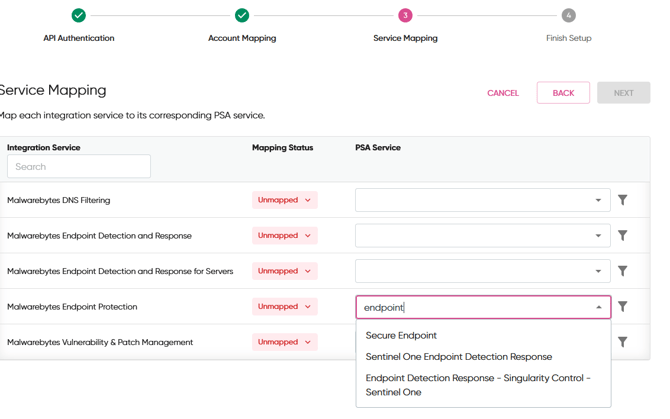
When you first connect a vendor, Gradient walks you through service mapping as part of setup:
- Review the auto-mapped services. These will have a PSA service already selected. Give them a quick sanity check.
- For unmapped services, click the dropdown on the right and start typing to search your PSA services.
- Use the pin icon (funnel) to auto-fill the first word of the vendor service name into the search.
- You don't need to map every service before hitting Next. Finish what you can, then come back later in Advanced Config.
After setup, via Advanced Config
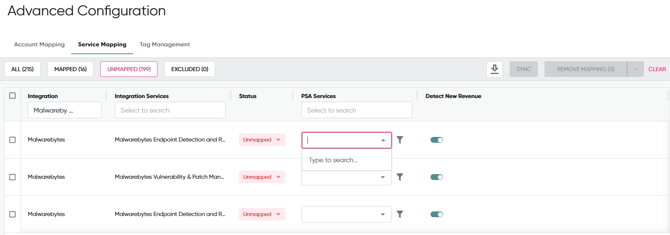
Advanced Config is where you'll do most of your service mapping work and all of your monthly maintenance:
- From the left-hand navigation, select Data Sources > Advanced Config.
- Click the Services tab at the top of the page.
- Use the filter at the top of the Integration column to focus on one vendor at a time.
- Click the Unmapped filter to show only services that need attention.
- For each unmapped row, click the PSA dropdown on the right and search for the correct service.
Detect New Revenue
Next to each mapped service you'll see a Detect New Revenue toggle. Keep this on for services where you want Gradient to flag when a customer is using the product but doesn't have it on their PSA agreement yet. This is how you catch missed billing opportunities.
A common example: a tech provisions Huntress for a new site but forgets to add it to the customer's agreement. With Detect New Revenue on, Gradient will show that usage as a New Revenue card on your dashboard so you can add it before the next invoice goes out.
When to turn it off: Detect New Revenue is automatically disabled for multi-mapped services (one vendor product mapped to multiple PSA services), because Gradient can't tell which PSA service the new usage should be attached to. You may also want to turn it off for internal or test products you don't bill for.
Should I Map or Exclude?
Every service in Gradient needs to be in one of three states: Mapped, Excluded, or Unmapped. The goal is to have nothing sitting in Unmapped, because Unmapped means Gradient can't do anything with it.
Here's how to decide:
|
Situation |
What to do |
Why |
|
The vendor service matches a product you sell |
Map it |
This is the whole point. Map it so Gradient can compare vendor usage to your PSA quantities. |
|
The vendor service is something you don't sell and don't plan to |
Exclude it |
Keeps your service mapping list clean and focused on products you actually resell. |
|
The vendor service is an older SKU you stopped selling but still appears in the catalogue |
Exclude it |
Excluding retires it from your list. If a customer still has that SKU, you'll see it flagged and can take action. |
|
A new product showing up that you're not sure about |
Leave it Unmapped for now |
Unmapped is the signal that this needs a decision. Research it, then either map or exclude. |
|
A vendor service that bundles several PSA products (e.g., a security suite) |
Map to the primary product + use Tags |
Map to the main product and tag the account so your reconciler knows to handle it manually. |
Resist the urge to exclude everything you don't immediately recognise. If a product exists in the vendor catalogue, there's a chance a customer is using it. Excluding it means Gradient will never surface that usage, even when it's real revenue you should be capturing.
One-to-Many and Many-to-One Mapping
One PSA service to many vendor services
This is common and supported. For example, you might have a single PSA service called Advanced Security Package that represents a bundle of three vendor products. You can map all three vendor services to the same PSA service. Gradient will sum the counts across them.
One vendor service to many PSA services
This is also supported but flagged as multi-mapped. You might do this when you sell the same vendor product under slightly different PSA service names across different agreement templates. Note that multi-mapped services disable the Detect New Revenue toggle, since Gradient can't determine which PSA service a new user should be attached to.
Rule of thumb: Start simple. Map one-to-one where you can. Reach for one-to-many or many-to-one only when your PSA structure genuinely needs it. The simpler your mapping, the easier your monthly reconciliation.
Cleaning Up Large or Legacy Catalogues
Some vendors (especially distributors like Pax8 or ones that have acquired other companies) present a very long list of products at setup, many of which you'll never sell. A few strategies to handle this:
- Bulk exclude by integration: Use the checkbox on the far left of the Services page to select multiple services, then choose Exclude from the actions at the top right. This is the fastest way to clear out products you don't sell.
- Filter, then bulk exclude: Filter by a keyword (e.g., a legacy vendor name) and exclude that entire set at once.
- Exclude by default, include as you go: For very long catalogues, it can be faster to exclude the whole list and then include only the specific products you actively resell.
- Watch for new products later: When a genuinely new product appears in your integration that you haven't seen before, it will show up as Unmapped. That's your signal to research it and decide whether to map or exclude.
Monthly Maintenance
Service mapping isn't a one-and-done task. A few things will cause unmapped services to appear over time:
- New products in the vendor catalogue. Vendors add new SKUs constantly, especially Microsoft and security vendors. Any new product appears as Unmapped until you make a decision.
- Renamed products. If a vendor renames a product, the existing mapping breaks. You'll see it reappear as Unmapped.
- New PSA service catalogue entries. Adding new services to your PSA catalogue will often trigger a need to remap vendor services so they point to the new entry.
Make it a habit: At the start of every monthly reconciliation, open Advanced Config, click the Services tab, and filter to Unmapped. If anything shows up, triage it first. This prevents service cards from being missing on your dashboard.
Troubleshooting
A service I expected isn't showing up
Check these in order:
- Confirm the service is mapped in Advanced Config under the Services tab. If it's Unmapped or Excluded, no service cards will appear for it.
- Confirm the related customer account is mapped on the Accounts tab. If the account isn't mapped, services for that customer won't appear either.
- Confirm the PSA agreement includes the service. Gradient only creates service cards for services that are on an active contract in your PSA.
- Run a full PSA sync from Settings > Data Settings > PSA Configuration > Start Full Sync.
Multi-mapped service isn't detecting new revenue
This is by design. When a vendor service is mapped to more than one PSA service, Gradient can't pick which one a new user should be attached to, so the Detect New Revenue toggle is automatically disabled. If you want new revenue detection for this service, you'll need to simplify the mapping down to one-to-one.
I accidentally excluded a service and need it back
No problem. Go to Data Sources > Advanced Config > Services, find the excluded service, and change its status back to Mapped (or Unmapped if you want to re-map it fresh). Exclusions are fully reversible.
Microsoft services have duplicates with different term lengths
Microsoft NCE products are often listed in multiple versions: monthly commitment, annual commitment, triannual, and sometimes one without a term at all. Always map to the version that has a term length in the name. The no-term version is not valid for reconciliation and should be excluded. For more detail, see the Pax8 integration guide.
Still stuck? Reach out at support@meetgradient.com and we'll get you sorted. 🦩