
How to Set Up Pax8 and Microsoft for Integration
This article will walk you through everything required to properly configure your Pax8 and Microsoft environments to use our integration. It includes:
-
✅ Required permissions and admin access
-
✅ Authentication setup with Microsoft
-
✅ How to configure GDAP (Granular Delegated Admin Privileges)
-
✅ References to Pax8 and Microsoft official documentation
Pax8 Admin Account Requirements
To successfully connect your Pax8 account with our system, the account used must have admin access. This is due to a technical constraint that Pax8 has confirmed and documented — certain API endpoints simply won’t return data unless the authenticating user has admin rights.
✅ How to check if your Pax8 account has admin access
-
Log in to Pax8 at https://admin.pax8.com
-
Navigate to My Account
-
Look for a Role that includes “Admin” or “Full Access”
🛠️ How to request admin access or create a new admin user
-
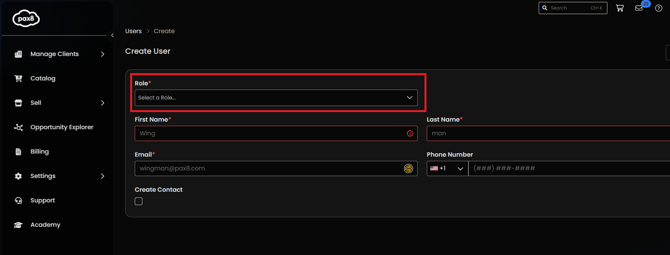
An existing Pax8 admin can go to Settings > Users > Add New User
-
Assign the Administrator role
🔗 Reference: Pax8 Role Permissions Overview
Microsoft Authentication Setup
To connect Microsoft data, your account must authorize access with the correct delegated permissions via OAuth.
✅ Required Microsoft Permissions
We request permissions such as:
-
Organization.Read.All
-
User.Read.All
-
Group.Read.All
-
Directory.Read.All
These are needed to:
-
Read license and subscription info
-
Retrieve user and group details for assignment validation
How to provide tenant-wide consent
If you’re a Microsoft 365 Global Admin:
-
Go to: https://login.microsoftonline.com/common/adminconsent?client_id=YOUR_CLIENT_ID_HERE
-
Sign in and grant consent
-
You’ll see a confirmation screen when successful
🔗 Reference: Microsoft OAuth Permissions Consent Docs
Setting Up GDAP (Granular Delegated Admin Permissions)
GDAP is required by Microsoft for partners (like Pax8 resellers) to manage customer tenants. Without GDAP, Microsoft APIs will not return customer-level data.
If you’ve never set up GDAP before, this section will walk you through the recommended approach
What is GDAP?
Granular Delegated Admin Privileges (GDAP) is Microsoft’s new model that replaces DAP (Delegated Admin Privileges) for security and control improvements.
🔗 Reference: Microsoft GDAP Overview
✅ How to check if you have GDAP relationships
Use Microsoft Partner Center:
-
Navigate to Customers
-
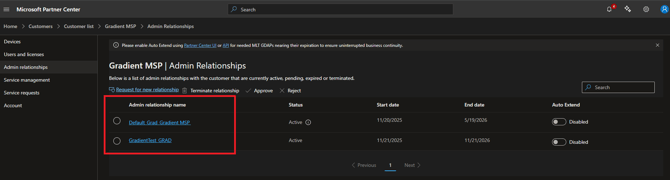
Select the customer you wish to add the relationship for, and then from the left hand menu select Admin relationships
-
Any relationships are listed in the first column Admin relationship name
🛠️ How to create a GDAP relationship
-
Log into Microsoft Partner Center
-
Navigate to Customers
-
Select the customer you wish to add the relationship for, and then from the left hand menu select Admin relationships
-
Select Request for new relationship
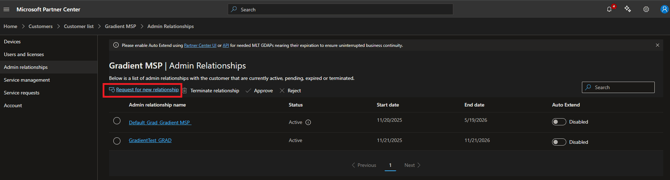
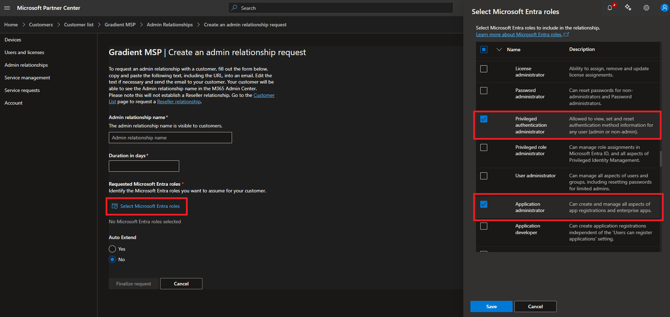
- Give your relationship a name, and a duration, and then Select Microsoft Entra roles.
- This will open a side bar. Scroll down in that menu and ensure that you check the boxes for Privileged Role Administrator and Application Administrator(both are under the Identity heading) then click Save
- Select whether you wish the relationship to Auto Extend or not and then select Finalize Request.
-
Once approved, the GDAP is active (usually within minutes)
🔗 Official Microsoft Guide: