
This guide walks through:
-
How to read the reconciliation table
-
How To-Do vs All works
-
What each status means
-
How grouping helps you analyze data
-
How to use the expandable details view to handle complex scenarios
This page is designed to be your daily workspace for Microsoft NCE.
Where to Find Microsoft Reconciliation
Navigate to:
Microsoft Reconciliation
By default, you will land on the NCE view, which shows all Microsoft New Commerce Experience subscription information detected through your integration.
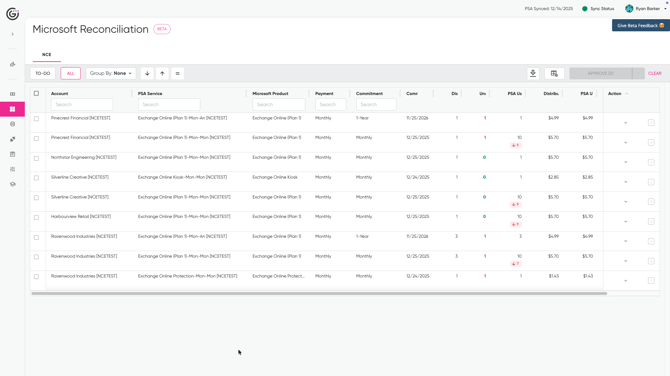
Understanding the Main Table
Each row in the table represents a reconcilable Microsoft subscription state, aligned to a PSA service.
Key columns you will see include:
-
Account
The customer account mapped during setup.
-
PSA Service
The service in your PSA catalog that this Microsoft product is mapped to.
-
Microsoft Product
The Microsoft SKU, such as Exchange Online or Microsoft Business Basic.
-
Payment
How the subscription is billed, typically Monthly.
-
Commitment
The commitment term, such as Monthly or 1-Year.
-
Commitment End Date
The date the current commitment expires.
-
Distributor Unit Cost
Cost pulled from your distributor.
-
PSA Unit Cost
Cost currently stored in your PSA.
-
PSA Unit Price
What you bill your customer.
-
Action / Status
The current reconciliation state of the item.
All numeric values shown are calculated totals based on the underlying subscriptions and contract lines.
To-Do vs All
At the top of the page, you will see two buttons:
-
To-Do
-
All
These are new concepts in Gradient and are core to how Microsoft Reconciliation works.

To-Do
To-Do shows only items that require attention.
This includes:
-
Quantity increases
-
Quantity decreases
-
Pricing or margin issues
- Any item that requires review or approval before syncing to your PSA
If you want a focused work queue, this is where you start your day.
Think of To-Do as your Microsoft action list.
All
All shows every detected subscription item, regardless of state.
This includes:
-
Items that are already approved
-
Items that were auto-approved
-
Items that do not require changes
-
Items that are informational only
Use All when:
-
Auditing customer subscriptions
-
Investigating questions from finance or billing
-
Reviewing upcoming renewals
-
Exploring trends across accounts
Status Tags and What They Mean
At the end of each row, you will see a status tag. These tags communicate what action, if any, is required.
The exact wording may evolve, but common states include:
-
Ready to Approve
Changes have been detected and are ready for approval.
-
Needs Review
Something requires closer attention before approval. This may be due to margin rules, proration, or complex changes.
-
Auto-Approved
The item met your billing configuration rules and was automatically approved.
-
Auto-Rec Enabled
Auto-reconciliation is enabled and future changes will be handled automatically.
These tags are informational and intentional. They tell you where to focus, not just what changed.
Expanding a Row to See Details
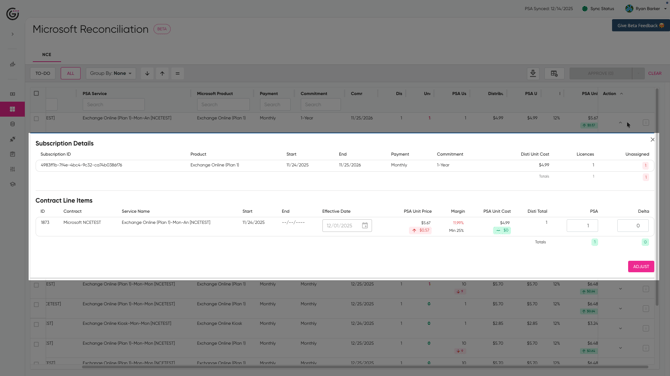
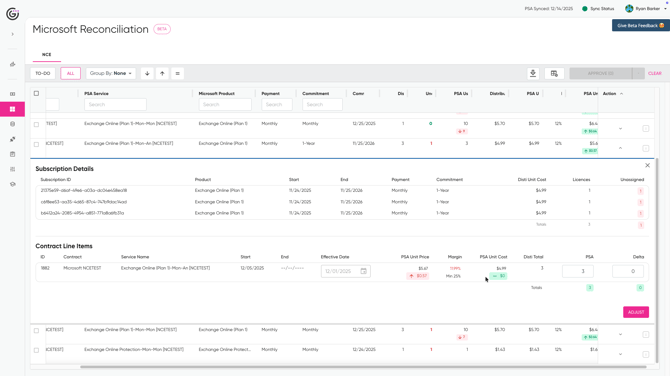
One of the most important features of Microsoft Reconciliation is the expandable details view.
Clicking the dropdown on a row reveals two sections:
-
Subscription Details
-
Contract Line Items
This is different from other areas of Gradient and is designed specifically for Microsoft complexity.
Subscription Details
This section shows the actual Microsoft subscriptions contributing to the row.
You may see:
-
One subscription
-
Multiple subscriptions
-
Subscription IDs
-
Start and end dates
-
Commitment terms
-
License counts
-
Unassigned quantities
This answers the question:
"What Microsoft data is this row based on?”
Contract Line Items
This section shows how those subscriptions are represented in your PSA contracts or agreements.
You may see:
-
One contract line
-
Multiple contract lines
-
Lines across one or more contracts
-
Different effective dates
-
Different quantities
This answers the question: “How is this currently billed in my PSA?”
Why This Matters
Microsoft subscriptions do not always map cleanly to PSA contracts.
Common scenarios include:
-
One SKU split across multiple contract lines
-
Multiple subscriptions rolling up to one service
-
Historical contract decisions that no longer match current usage
The expandable view gives you full visibility so you can:
-
Understand mismatches
-
Decide how to distribute changes
-
Adjust quantities intentionally
Making Adjustments
When changes are required, you will see an Adjust action in the expanded view.
This allows you to:
-
Modify quantities
-
Apply changes to specific contract lines
-
Control how increases or decreases are distributed
This is especially important when:
-
Multiple contract lines exist for the same SKU
-
Only part of a subscription change should be applied
-
Cleanup is required over time
Grouping Your Data
You can group reconciliation items using the Group By option.
One powerful example is grouping by:
Commitment End Date
This allows you to:
-
See upcoming renewals
-
Identify risk windows
-
Prepare for customer conversations
-
Catch renewal-driven changes early
Other grouping options help you analyze data by:
-
Account
-
Service
-
Product
-
Commitment

Approving Changes
Once you have reviewed items in To-Do:
-
Select individual rows or groups
-
Click Approve
-
Changes sync to your PSA based on your configuration
Auto-approved items will not appear in To-Do unless something changes.
How This Fits Into Daily Workflow
A common rhythm looks like this:
-
Open Microsoft Reconciliation
-
Start in To-Do
-
Review items with Ready to Approve or Needs Review
-
Expand rows when needed
-
Adjust only when necessary
-
Approve and move on
All remains available for deeper analysis or audits.