
At a glance
- Applies to: Reconcile™ with any supported PSA
- Integration type: native: Gradient connects to NinjaOne for you
- Account mapping: one-to-one: each NinjaOne customer maps to one PSA company
In this article
To configure and connect the NinjaOne integration, please select from the following:
NinjaOne services in Gradient
We synchronize "all devices" with NinjaOne because NinjaOne charges on a per-device basis. These services are available to map to your contracts and are aggregated by device class.
Note: Custom device classes are rolled up to the corresponding parent device class.
| Service | Device Class |
| Total Devices | All device classes |
| Total Servers | WINDOWS_SERVER, VMWARE_VM_HOST, HYPERV_VMM_HOST, LINUX_SERVER, MAC_SERVER, VMWARE_VM_GUEST, HYPERV_VMM_GUEST, NMS_VM_HOST, NMS_SERVER, NMS_VIRTUAL_MACHINE |
| Total Physical Servers | WINDOWS_SERVER, LINUX_SERVER, MAC_SERVER, NMS_SERVER |
| Total Virtual Servers | VMWARE_VM_HOST, HYPERV_VMM_HOST, VMWARE_VM_GUEST, HYPERV_VMM_GUEST, NMS_VM_HOST, NMS_VIRTUAL_MACHINE |
| Total Workstations | WINDOWS_WORKSTATION, LINUX_WORKSTATION, MAC, NMS_COMPUTER |
| Total Workstations and Servers | WINDOWS_WORKSTATION, LINUX_WORKSTATION, MAC, NMS_COMPUTER, WINDOWS_SERVER, VMWARE_VM_HOST, HYPERV_VMM_HOST, LINUX_SERVER, MAC_SERVER, VMWARE_VM_GUEST, HYPERV_VMM_GUEST, NMS_VM_HOST, NMS_SERVER, NMS_VIRTUAL_MACHINE |
| Total Network Devices | NMS_SWITCH, NMS_ROUTER, NMS_PRIVATE_NETWORK_GATEWAY, NMS_WAP, NMS_FIREWALL, NMS_PRINTER, NMS_APPLIANCE, NMS_SCANNER, NMS_OTHER, CLOUD_MONITOR_TARGET, NMS_DIAL_MANAGER, NMS_PHONE, NMS_IPSLA, NMS_NETWORK_MANAGEMENT_AGENT |
| Total Mobile Devices | ANDROID, APPLE_IOS |
Generate NinjaOne API credentials
- Login to NinjaOne.
- Navigate to Administration and select API under the Apps section.
- Click Client App IDs
- Click Add
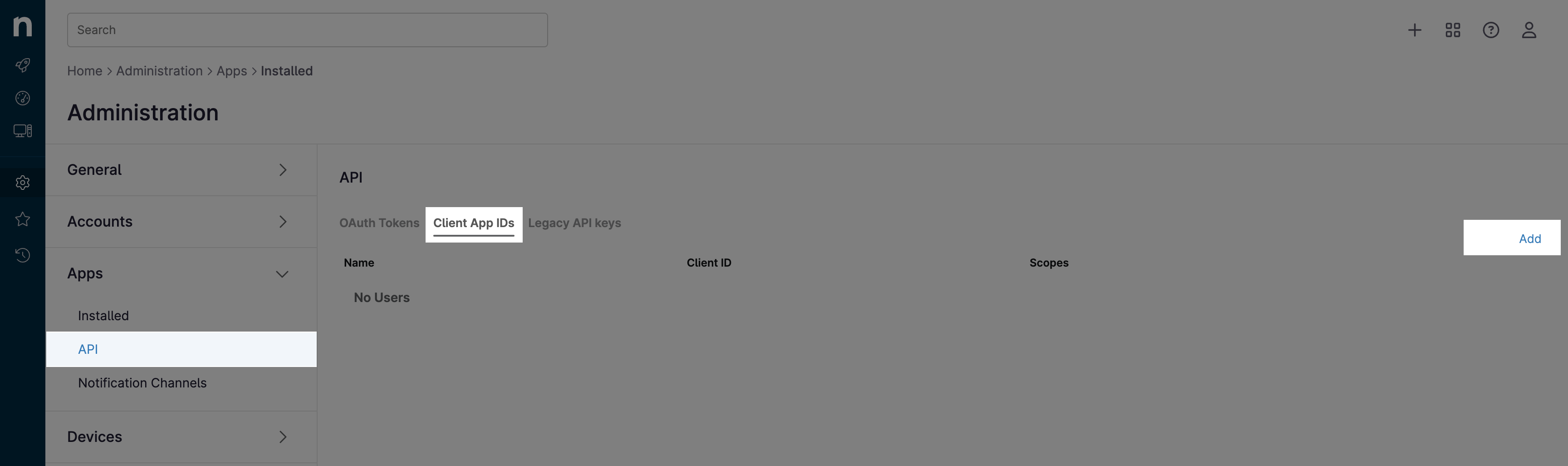
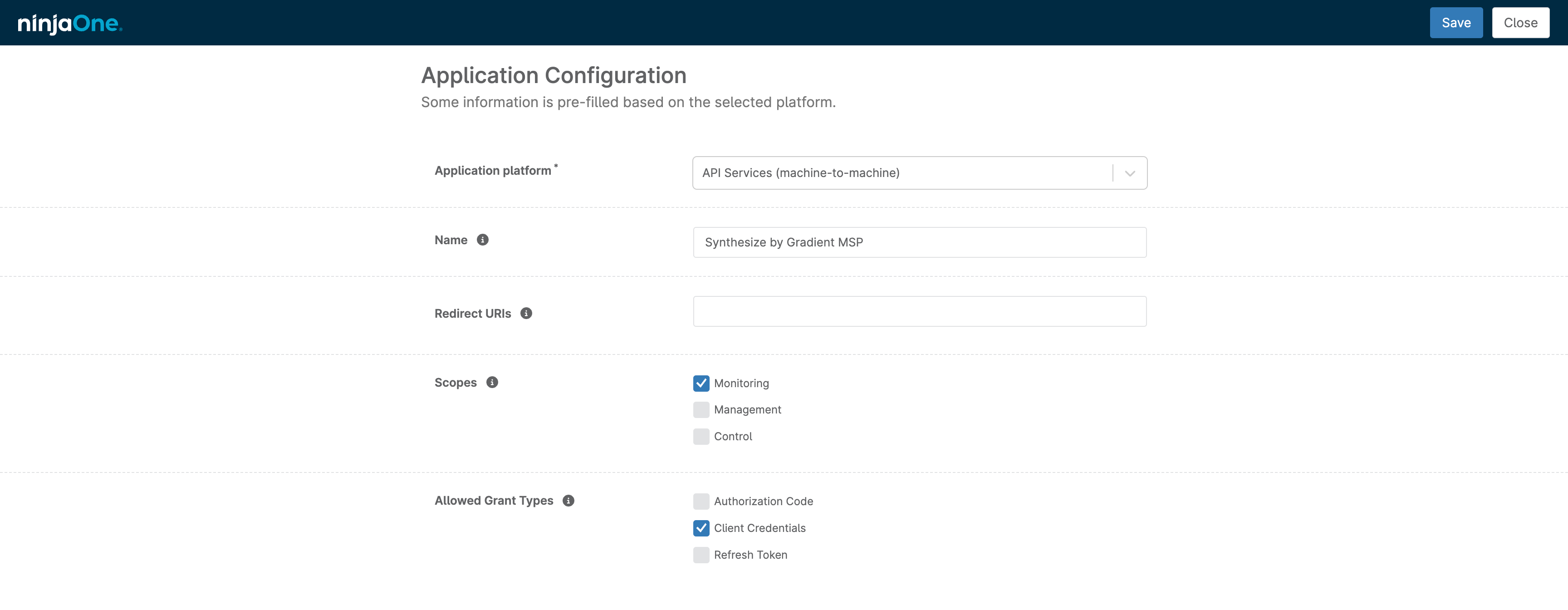
- Select API Services (machine-to-machine) under the Application Platform dropdown.
- Enter an application name, like Gradient.
- Select Monitoring under Scopes.
- Select Client Credentials under Allowed Grant Types.
- Note that if you do not select Client Credentials you will not be able to proceed.
- Click Save.
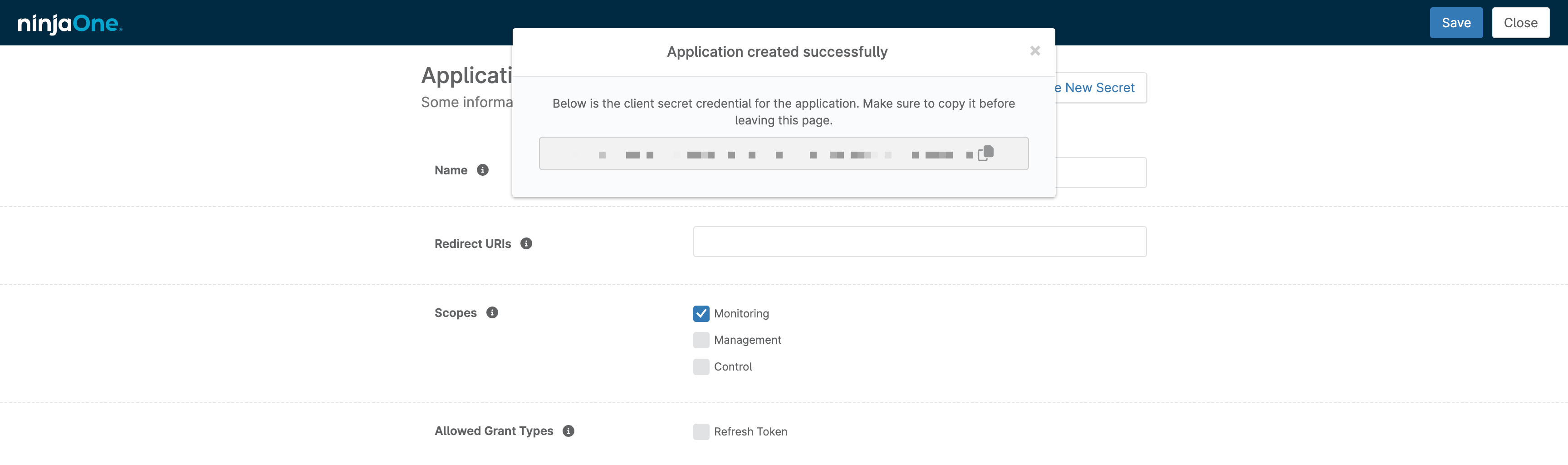
Copy the Client Secret and store in a secure location. This secret will only be generated once, but you have the option to regenerate it at any time if needed.
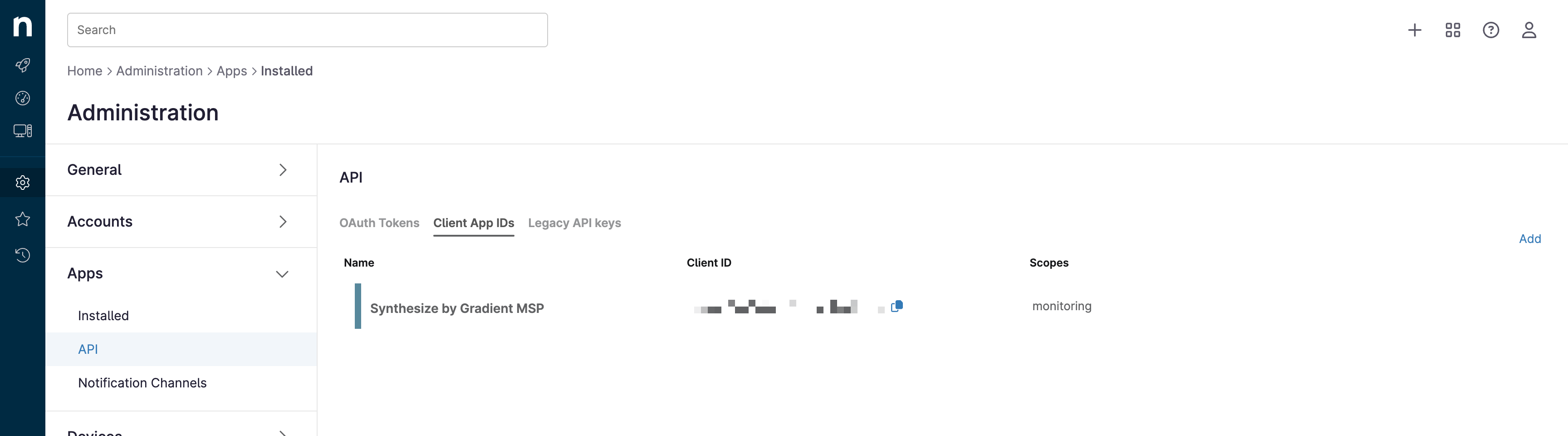
Click Close to return back to the previous screen and copy the Client ID.
Copy the Client ID.
Connect NinjaOne to Gradient
- Login to Gradient, and navigate to the Integrations tab.
- Select the NinjaOne integration and click Connect.
- Enter the Client Secret, Client ID, and API URL collected from NinjaOne.
The most common API URL is https://api.ninjarmm.com however there are several options. They should all appear as https://___.ninjarmm.com, and should be visible in the URL bar when you are logged into the NinjaOne portal. - Click Authenticate. Once successfully authenticated, accounts and services will be generated, and the integration will be updated to a pending status. You can click the Status refresh button or simply refresh your browser if you are unable to proceed to the next step.
- Click Next.
Note: Ninja has several regional API's. If you are having issues getting a connection with the one in your URL, try these region specific ones.
- North America:
https://app.ninjarmm.com - EMEA:
https://eu.ninjarmm.com - APAC:
https://oc.ninjarmm.com
Map NinjaOne accounts and services
Note: For the full mapping steps, see Account Mapping and Service Mapping. Account mapping is one-to-one: each NinjaOne customer maps to one PSA company.
-
Map NinjaOne accounts
- When setting up the integration for the first time, accounts are automatically matched if there's an exact name match between your vendor and PSA.
- For accounts not automatically matched:
- Use the filter button beside the account names on the right, or
- Use the search bar on the left to find PSA accounts.
- Drag and drop the PSA accounts from the left to match them with vendor accounts on the right.
-
Map NinjaOne services
- Once accounts are mapped, click "Next" to access the Service Mapping step.
- Match services or products from your PSA, displayed on the left, with the corresponding vendor services or SKUs on the right. For ConnectWise PSA users, you can also search by Product ID.
- Ensure at least one account and one service mapping is completed to finish the configuration.
- After mapping the services, click "Next".
-
Finish the NinjaOne setup
- Review your mappings and click "Finish" to complete the setup.
- This will start a sync. The "Sync Status" indicator at the top right will start spinning, indicating that a sync is in progress.
- Once the sync is complete, the "Refresh" button will turn pink, indicating that the sync is complete. Click that button to see the vendor data filled out.
- Use the filter or sort options to jump to the connected services and start reviewing and reconciling!
Troubleshooting NinjaOne
NinjaOne shows Not Ready during setup
Gradient shows Not Ready until it receives at least one active service from NinjaOne, and while the first sync is still running. See Integration Shows Not Ready.
NinjaOne sync failed, stopped updating or shows Unknown State
The NinjaOne credentials have usually expired or changed. In Gradient, go to Integrations > Data Sources > Integrations, filter to connected integrations and select NinjaOne, then click Configure > API Authentication > Authenticate. If that works, click Sync Now. If it fails, create new NinjaOne credentials and authenticate again. See the vendor sync decision tree.
A customer in NinjaOne is missing from account mapping
Make sure the customer is active in NinjaOne, then sync the integration again. See Account Mapping and Section C of the vendor sync decision tree.
NinjaOne counts don't match the NinjaOne portal
See Gradient Counts Don't Match Your Vendor or PSA.
Still stuck?
Email support@meetgradient.com with:
- The error or status Gradient shows for NinjaOne (a screenshot is fine)
- The NinjaOne customer and PSA company involved
- When NinjaOne last synced successfully
Related articles