
Table of Contents
If you just signed up for Gradient's Reconcile, this is your default view. For existing users, you will need to toggle this feature on.
What is the New Reconciliation Experience?
The New Reconciliation Experience is a refreshed take on the reconciliation screen, built around one core idea: contract items should never disappear on you. In the classic experience, once a billing item is approved it drops out of view until the next billing cycle. The new experience keeps every contract item visible and available at all times, similar to how Gradient's Microsoft reconciliation already works, so you always have full visibility into your contracts, notes, and history, even after you've approved something.
Along with that core change, the new experience includes:
-
A refreshed toolbar with cleaner, more consistent interactions across the reconciliation grid
- A "Mapped Only" quick filter, so you can instantly narrow the view down to items that are already mapped instead of digging through everything
- A clearer view of items that need your attention, without losing visibility into the rest of your contract items
- See the last action taken on any item, clearly from the dashboard.
- A ToDo view, that only shows you line items with pending actions, vs the All view that shows ever line item and the last action taken etc.
- A handful of smaller usability improvements throughout the screen
The feature is currently labeled BETA while Gradient continues to refine it based on partner feedback, and it's opt-in: you can switch back to the classic experience at any time from the same setting.
Note: This is a data settings-level change, not a per-user setting. Once you enable it, everyone accessing reconciliation on your account will use the new experience until you turn it off.
How to Turn On the New Reconciliation Experience
- Log in to Gradient and go to Settings.
- Select Data Settings from the left-hand navigation.
- Click the Reconciliation tab.
- Under Billing Reconciliation Settings, find New Reconciliation Experience. It's marked with a BETA badge.
- Use the toggle to switch it on.
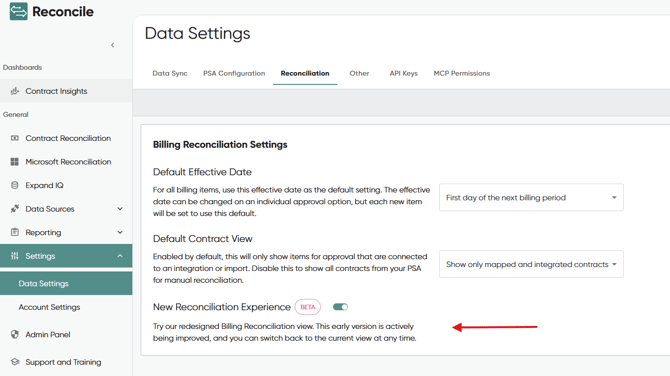
That's it. The next time you open reconciliation, you'll see the redesigned workflow. No historical data, mappings, or approvals are affected by turning this on or off.
How to Turn It Off
Not loving it, or just testing it out? Flip the same toggle back to off from Data Settings > Reconciliation at any time. You'll be switched back to the classic reconciliation experience immediately, with nothing lost in the process.
Where This Setting Lives
| Setting | Location |
|---|---|
| New Reconciliation Experience toggle | Settings > Data Settings > Reconciliation |
| Default Effective Date | Settings > Data Settings > Reconciliation |
| Default Contract View | Settings > Data Settings > Reconciliation |
Frequently Asked Questions
Is this feature available to everyone yet? It's currently a beta, opt-in feature. If you don't see the toggle, check that you're on the Reconciliation tab under Data Settings, and reach out to Support if it's still not showing up.
Will turning this on change how my contracts are billed? No. This changes how reconciliation is displayed and navigated, not the underlying billing logic, contract data, or approvals.
Will approved items still disappear from view in the new experience? No, that's the main change. Approved and past items stay visible and accessible going forward instead of dropping out of view until the next billing period.
Can I go back to the classic view later? Yes. Toggling this off at any time returns you to the classic reconciliation experience.
Is there training or a walkthrough available? Not yet; this article will be updated as in-app guidance becomes available. In the meantime, if you have questions about the new layout, reach out to your Gradient contact or Support.
Related Articles